Search In This Website

Tampilkan postingan dengan label computer course. Tampilkan semua postingan

Selasa, 02 Desember 2025

Insert Horizontal Line In Microsoft Office Word

Preparation

< to learn start the Microsoft Office Word application, click Start Microsoft Office Word Application
< to learn to make a new document in Microsoft Office Word in Bahasa language, click Membuat Dokumen Microsoft Office Word 2007

Insert A Horizontal Line In Microsoft Office Word 2007

1. Typing a paragraph text.
2. Then select a paragraph text.
3. In Microsoft Office Word, on the Home tab, select the down arrow next to Borders button.
4. Choose Bottom Border.


Notes

  • untuk gambar yang lebih jelas, klik di gambar.
  • Sementara tidak terdapat gambar screenshot dikarenakan komputer untuk memproduksi tutorial sedang rusak, masih dalam usaha untuk memperbaiki.

Bibliography 
Ebook Microsoft Office; Microsoft Press
Ebook Microsoft Office; Elex Media Komputindo
Ebook Microsoft Office; Cengage publisher
https://www.tiktok.com/@seewhatiseeee

Kamis, 27 November 2025

Android File Manager

Berikut ini adalah aplikasi Android dengan fungsi manajemen folder standard ( diuji coba dalam versi free ):

* Cx File Explorer
* EX File Manager
* File Manager+
* File Manager - XFolder
* Files by Google
* Fossify File Manager
* RS File Manager
* Solid Explorer
* Super File
* Total Commander
* X-plore

Berikut ini adalah aplikasi Android dengan fungsi manajemen folder canggih ( diuji coba dalam versi free ):
* ASTRO File Manager
* FV File Explorer

Catatan:
Tersedia versi berbayar dengan fungsi-fungsi produktivitas, pilih sesuai dengan kebutuhan masing-masing pengguna.


Kamis, 20 November 2025

Notepad++ Family Trigger AutoComplete

Keyboard To Trigger AutoComplete: Ctrl+Alt+Enter

Notepad3 Punctuations:
  • Comma ( , )
  • Single Quote ( " )
  • Semi Colon ( ; )

Keyboard List To Finish AutoComplete:

  • Enter
  • SpaceBar
  • Tab
Keyboard To Cancel AutoComplete: Esc


Multiple Title Lines In Latex

1. Open the Latex editor.
2. Type this following latex source code in latex editor:
% !TEX TS-program=pdflatex
% !TEX encoding=UTF-8 Unicode
% Distributed under the LaTeX Project Public License
% https://www.latex-project.org/lppl.txt
% file name: ATitleSpanningThreeLines.tex

\documentclass{article}

\title{\protect\parbox{\textwidth}{\protect\centering A title\\ Spanning\\ Three Lines}}
\author{The Author}

\begin{document}

\maketitle

\end{document}
3. save file as ATitleSpanningThreeLines.tex.
4. run the Typeset command or similar other command with pdfLatex.

Output


Bibliography

https://www.tutorialspoint.com/
https://tex.stackexchange.com/
https://www.techrepublic.com/

Minggu, 09 November 2025

Notepad3 Keyboard Shortcut 1

File Menu

Ctrl+L=Launch - Execute document
Ctrl+M=Run the MiniPath file Browser plugin… ( Browse )
Ctrl+N=New
Ctrl+O=Open
Ctrl+P=Print file…
Ctrl+R=Run Command…
Ctrl+S=Save file

Edit Menu

Ctrl+A=Select All
Ctrl+C=Copy
Ctrl+D=Lines - Duplicate line/Selection
Ctrl+G=Goto...
Ctrl+U=Convert - Lowercase
Ctrl+Y or Ctrl+Shift+Z=Redo
Ctrl+Z=Undo

<< back to Learn Notepad++

Bibliography

https://github.com/
https://rizonesoft.com/
https://www.apsu.edu/ ( university )
https://www.autodesk.com/
https://www.bu.edu/ ( university )

Jumat, 07 November 2025

How To Launch Control Panel In Windows 8

1. Launching the Control Panel on Microsoft Windows 8 is very easy, click the Start button on the Microsoft Windows Taskbar to open the Start Screen (A Full-Screen Start Menu).

2. Click Search (Magnifying Glass) icon, by typing Control Panel into the search box.


3. And in the search results, select Control Panel.

4.The Control Panel will available.


<< back to  Learn Microsoft Windows ( Road Map )


Bibliography

https://www.computerhope.com/

https://www.howtogeek.com/

https://www.wikihow.com/

https://support.microsoft.com/


Rabu, 05 November 2025

Study About Tikz In Latex

Introduction About Tikz

  • Setting Up The Environment In Latex
  • tikzpicture Environment And tikz Command
  • Draw A Straight Path
  • Grid Path Construction
  • Help Lines Construction

Design Principles

  • Specifying Coordinates
  • Specifying Points
  • Coordinate Transformation System

Drawing

Actions On Paths

Drawing Options

Key-Value Syntax for Graphic Parameters


Selasa, 04 November 2025

Simple Sample For Page Number

1. Open the Latex editor.
2. Type this following latex source code in latex editor:
% !TEX TS-program=pdflatex
% !TEX encoding=UTF-8 Unicode
% Distributed under the LaTeX Project Public License
% https://www.latex-project.org/lppl.txt
% file name: SimplePageNumber2.tex
\documentclass[12pt]{article}
\usepackage{bookman}
\usepackage{lastpage}
\usepackage{fancyhdr}
\pagestyle{fancy}
\fancyhf{} % clear existing header and footer
\renewcommand{\headrulewidth}{0pt} % Remove Line From Header
\renewcommand{\footrulewidth}{0pt} % Remove Line From Footer 
\fancyfoot[R]{Page \thepage\hspace{5pt} of\hspace{5pt} \pageref{LastPage}}
\begin{document}
\Huge{}
FedEx
\clearpage
UPS
\newpage
DHL
\pagebreak

TNT Express
\end{document}
3. save file as pageNumber2.tex.
4. run the Typeset command or similar other command with pdfLatex 2x times

Output

Simple Sample Latex Page 1 of 4

Simple Sample Latex Page 2 of 4

Simple Sample Latex Page 3 of 4

Simple Sample Latex Page 4 of 4


Cara Membuka Control Panel Di Microsoft Windows 8.1

  1. Untuk membuka Control Panel dari Start Screen (A Full-Screen Start Menu). Klik tombol Start di Microsoft Windows Taskbar untuk membuka Start Screen.
  2. Klik icon Search, ketik Control Panel.


  3. Ketika hasil pencarian muncul, klik Control Panel.


  4. Control Panel akan muncul di layar.


Bibliography

https://usk.ac.id/ (university)

https://telkomuniversity.ac.id/ (university)

Windows For Dummies

Windows Made Easy

Windows Step By Step

Tambahkan Control Ke Form ( VB Classic )

Tujuan Pembelajaran

  • Seiring siswa terus mempelajari teknologi, siswa akan memahami pelajaran dan dapat menangani situasi dalam pengembangan perangkat lunak dan teknologi.
  • Siswa dapat menambahkan kontrol ke Visual Basic form. Dalam pelajaran ini, kita akan belajar menambahkan Label control ke Form Container control..

Latih langkah berikut untuk menambahkan Control ke form/menggambar Control pada Form:

  1. Klik Control’s Toolbox Icon.
  2. Gerakkan pointer mouse ke atas Form Anda. Perhatikan bahwa mouse pointer berubah menjadi crosshair (tanda silang), bukan panah. Klik dan tahan tombol mouse. Saat Anda menahan tombol mouse, Anda akan melihat outline dari control yang Anda gambar.
  3. Saat Anda melepaskan tombol mouse, control akan muncul.

Menggunakan kontrol intrinsik dalam Visual Basic, menambahkan kontrol ke formulir, menggambar kontrol pada formulir.


Untuk belajar post ini dalam bahasa Inggris, klik Add A Control To A Form (VB Classic)


Bibliography

https://visualstudiomagazine.com/
https://support.microsoft.com/
https://beldnlat147.blogspot.com/
https://translate.google.com/

Kamis, 09 Oktober 2025

Program Linear Graph In Latex 1

1. type this in Latex editor

% !TEX TS-program = pdflatex

%Typeset/Build program

\documentclass[preview=true,multi,crop=false,tikz]{standalone}


%% 5.3 Macros and environments

\standaloneconfig{border=10}

\standaloneenv{minipage,tikzpicture}


%% hatch line between, shaded line bounded between


\usepackage{amsmath}

\usepackage{pgfplots}

\pgfplotsset{compat=1.18}

\usetikzlibrary{decorations.markings}


\tikzset{

region2/.style={

 postaction={decorate},

 decoration={

   markings,

   mark=between positions 0 and 1 step 0.75mm with { %

     % note that the values are in axis units

     \draw [solid,thin] (axis direction cs:0,#1*0.1) -- (axis direction cs:0,#1*1);

   }

 },

 /pgfplots/forget plot

},

region/.default=1

}


\begin{document}


\begin{minipage}[t]{0.55\linewidth}

  $\displaystyle\begin{cases}

    ax + 4y \\

    x + y = 12 \\

    x + 2y = 16 \\

  \end{cases}$

\end{minipage}


\begin{tikzpicture} %% 2

  \begin{axis}[ %

      axis x line=center,  axis y line=center,

      width=4in, height=4in,

      x axis line style={<->},

      y axis line style={<->},

      xmin=-1,   xmax=16,

      ymin=0,   ymax=12,

      every axis plot/.append style={

         very thick,

         cyan!50!black,

         domain=-10:16,

         samples=2, % all you need for straight lines

      } %, nodes near coords

    ]

    \addplot [solid,black] {12 - x};

    \addplot [black]{8 - 0.5*x};


% path/hatch/parallel segments to be decorated between two intersection lines

    \addplot [region2] coordinates{(0,12)(8,4)(16,0)};


    \addplot [dashed,black] coordinates {(0,4)(8,4)};

    \addplot [dashed,black] coordinates {(8,0)(8,4)};


  \end{axis}

\end{tikzpicture} %% end 2

\end{document}

2. Compile or build

3. Output similar like below


Notes 

  • To see the more clear screenshot, click on the picture.
  • Maybe you need a little bit high computer requirement to learn from above lesson list.

Draw Analog Clock In Latex

1. type this in Latex editor

% !TEX TS-program=pdflatex

\documentclass{article}

\usepackage{tikz}

\usepackage{parskip}

\usepackage{fourier}

\usepackage{tgbonum}

\usepackage{bm}


\usepackage[active,tightpage,varwidth]{preview}

\PreviewEnvironment{tikzpicture}

\setlength\PreviewBorder{0.25pt}


\begin{document}

\LARGE{}

\boldmath


%% draw nine o'clock

\begin{tikzpicture}[line cap=rect,line width=3pt,scale=3]

%% draw clock face circle

\filldraw [fill=gray!30] (0,0) circle [radius=2cm];

%% draw small tick line and the hour number of time

\foreach \angle [count=\xi] in {60,30,...,-270}

{

\draw[line width=1.5pt] (\angle:1.8cm) -- (\angle:2cm);

\node[font=\Huge] at (\angle:1.36cm) {$\textsf{\xi}$};

}


%% Part III TikZ ist kein Zeichenprogramm > 13 Specifying Coordinates > 13.2 Coordinate Systems > 13.2.3 Node Coordinate System

%% /tikz/cs/angle=<degrees>

%% draw big tick line and long tick line

\foreach \angle in {0,90,180,270}

\draw[line width=4pt] (\angle:1.6cm) -- (\angle:1.98cm);


%% Part III TikZ ist kein Zeichenprogramm > 16 Arrows >

%% 16.3.1 Size

%% draw short arm clock

\draw [line width=4pt,arrows=-stealth] (0,0) -- (180:0.85cm);

%% draw long arm clock

\draw [line width=4pt,arrows=-stealth](0,0) -- (90:1.15cm);

\end{tikzpicture}


%% 17.2.3 Common Options: Separations, Margins, Padding and Border Rotation

%% /pgf/shape border rotate=<angle>

\end{document}

2. Compile or build

3. Output similar like below


<< back to Study About Draw In Latex


Rabu, 08 Oktober 2025

Simple ERD Table Design In AsciiDoctor

1. Open the AsciiDoctor editor.
2. Type this following Asciidoctor code sample about simple ERD/ERM Database Table Design in Asciidoctor editor:

==== ERD ( Entity Relationship Diagram )

:author: AsciiDoctor

:co-author: Tutor Course and After School Course

:revnumber: 1.0

:revdate: June 6th, 2007

:doctype: article

:toc:

:icons:

:lang: en

.Database Table Design: adminacc

[options="header"]

|===

|Field Name      |Type |Size

|Username*      |Text |50

|password      |Text |50

3+|* _Primary Key_ ||

|===


.Database Table Design: record

[options="header"]

|===

|Field Name     |Type |Size

|stud_ID*       |Text |50

|fname          |Text |50

|mname          |Text |50

|lname          |Text |50

|email          |Text |50

3+|* _Primary Key_ ||

|===

 3. Result Asciidoctor code after rendering, similar like this:

ERD ( Entity Relationship Diagram )

Table 1. Database Table Design: adminacc
Field Name Type Size

Username*

Text

50

password

Text

50

* Primary Key
Table 2. Database Table Design: record
Field Name Type Size

stud_ID*

Text

50

fname

Text

50

mname

Text

50

lname

Text

50

email

Text

50

* Primary Key


Notes

3+| is for merge three cells in one row as one cell.


Rabu, 01 Oktober 2025

Latex Problem Underfull And Overfull

Underfull Problem In Latex

Several Underfull Warning in Latex can fix by this following Latex statement:
  • when inside normal environment:
    \parbox{\linewidth}{\raggedright  your text here }
  • when using multiline paragraph inside float environment (e.g. itemize list, caption, etc.)
    \parbox[t]{\linewidth}{\raggedright  your text here }

Notes

  • you can change t (top) pos parameter with the c for center and b for bottom.
  • you can change raggedright to raggedleft.

Overfull Problem In Latex

Several Overfull Warning in Latex can fix by this following Latex statement:
\begin{minipage}[t]{\linewidth}
your text here
\end{minipage}

Notes

Sometimes you meet to fix the problem by interchange.between parbox and minipage.


Bibliography

https://upy.ac.id/ (university)
https://www.jhu.edu/ (university)
https://www.rochester.edu/ (university)
https://www.overleaf.com/
https://support.lenovo.com/ ( hardware )
https://www.asus.com/ ( hardware )

Minggu, 28 September 2025

Set The JAVA_HOME variable In Microsoft Windows 8

From step 1 to step 10, you can study at the Set Up A Java Development Kit In Microsoft Windows 8 With Picture
  1. Let us locate the directory where the JDK is installed on our system, and note down the path to this directory.
  2. Open the Start menu and click "All apps" down arrow button in the bottom-left corner.
  3. Scroll through the list of apps and click "Control Panel" on the "Windows System".
  4. The Control Panel will appear on the screen.
  5. Under "View by:" on the right side, click "Category", 
  6. After then select the “System and Security” section.
  7. then select the System section on the right side.
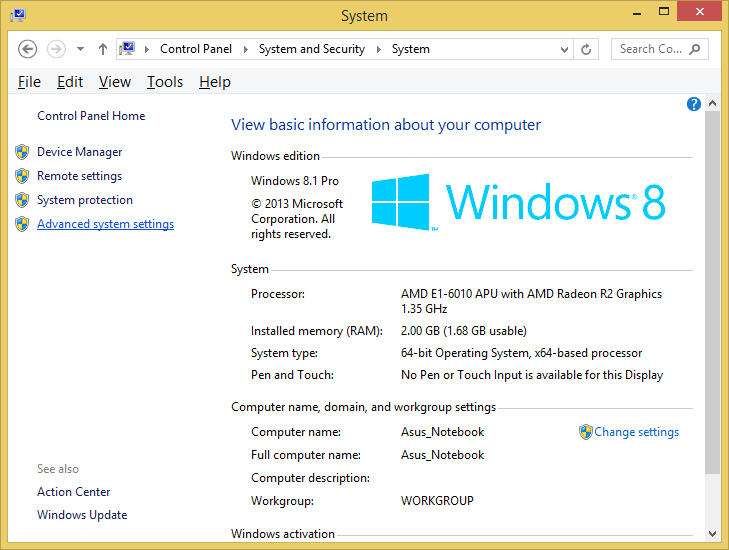
  8. In the System window, click on Advanced System Settings on the left sidebar.
  9. In the System Properties window (Advanced tab):
  10. Click the Environment Variables button.

Add JAVA_HOME Variable In Microsoft Windows 8

This following step to add JAVA_HOME variable:
  1. Under the System Variables section, click a New button to create a new one.


  2. In the Variable Name field, type JAVA_HOME.


  3. In the Variable Value field, enter the path to our JDK installation directory (e.g., in this post C:\runtime\Java\jdkX.X.X_XX\). Then press OK button.


Add %JAVA_HOME% To The Path Of Windows Environment Variable

This following step to add %JAVA_HOME% to the Windows Environment Variable:
  1. In the System Properties window, select the Path variable under the System Variables section. Click Edit button, 


  2. and add %JAVA_HOME%\bin to the list of paths if it’s not already there. Click OK  button.


  3. Click OK  button to apply the changes and restart the computer to ensure the changes take effect.


Check %JAVA_HOME% Has Installed Successfully

  1. Start Command Prompt window then use the following command to check the %JAVA_HOME% has been added correctly.


  2. echo %JAVA_HOME%. You should see the path to your JDK (or JRE) installation location without bin folder.


after this you can follow and practise this optional step below according to your condition:

Edit JAVA_HOME

  1. Under the System Variables section, found JAVA_HOME variable, click Edit button to modify the existing variable.


  2. change the Variable Value field with enter the path to our JDK installation directory (e.g., in this post C:\runtime\Java\jdkX.X.X_XX\ ). Then press OK button.


NOTES: 


<< back to  Study About Java 1

Bibliography

https://www.asus.com/ ( hardware )
https://www.codecademy.com/
https://www.youtube.com/@ProgrammingKnowledge
https://docs.oracle.com/ ( manual ebook )

Latex Length Reference

These following list are measurement unit in Latex:

\setlength Command Use To Resize (Several Parts In Document):

\arraycolsep{<number>}

\arrayrulewidth{<number>}

\baselineskip{<number>}

\columnwidth{<number>}

\evensidemargin{<number>}

\extrarowheight{<number>}

\footskip{<number>}

\headheight{<number>}

\headsep{<number>}

\itemsep{<number>}

\linewidth{<number>}

\oddsidemargin{<number>}

\paperheight{<number>}

\paperwidth{<number>}

\parindent{<number>}

\PreviewBorder{<number>}

\tabcolsep{<number>}

\textheight{<number>}

\textwidth{<number>}

\topmargin{<number>}

\topsep{<number>}

\topskip{<number>}

Example:

\setlength\arraycolsep{1.5em}

\selectfont Command Use To Adjust The Measurement In Several Part In Latex Document

\fontsize{<number>}{<number>}\selectfont

\linespread{<number>}\selectfont

Example:

\fontsize{13pt}{14pt}\selectfont


<< back to Learning Latex RoadMap

Senin, 22 September 2025

Set Up A Java Development Kit In Microsoft Windows 8 With Picture

  1. Let’s locate the directory where the Java executable is installed in our system, and note down the path to this directory.

    Locate the directory of the Java executable folder
    Locate the directory of the Java executable folder
  2. Open the "Start menu" and click "All apps" down arrow button in the bottom-left corner.

    Start Menu Windows opened
    Start Menu Windows opened

     "All apps" down arrow button in the bottom-left corner.

  3. Scroll through the list of apps and click "Control Panel" on the "Windows System".

    Scroll through the list of apps
    Scroll through the list of apps then click "Control Panel" on the "Windows System"

  4. The Control Panel will appear on the screen.

    Control Panel opened
    Control Panel opened
  5. Under "View by:" on the right side,  click "Category", 

    Under "View by:",  click "Category",
    Under "View by:",  click "Category", 
  6. After then select the “System and Security” section.

    select the “System and Security” section
    select the “System and Security” section
  7. then select the “System” section on the right side.

    then select the “System” section on the right side.
    then select the “System” section on the right side.
  8. In the System window, click on Advanced System Settings on the left sidebar.

    click on Advanced System Settings on the left sidebar
  9. After In the System Properties window (Advanced tab):

    click Advanced tab
  10. Click the Environment Variables button.

    click the Environment Variables button.
  11. Under the System Variables section, find Path variable.

    find and click Path variable in the middle
    find and click Path variable in the middle
  12. Click Edit button to modify the existing variable, or New button to create a new one, if the Path variable is not exist.

    Click the Edit button or click the New button. In the Variable Name field, ensure you enter Path
    Click the Edit button or click the New button.
  13. In the Variable Name field, ensure you enter Path.  In the Variable Value field, add the path of our Java installation directory (e.g., "C:\runtime\Java\jdk1.6.0_21\bin"). Click OK button on the Edit System Variable window, to apply the changes.

    Enter Variable name, enter Variable value, then click OK button
    Enter Variable name, enter Variable value, then click OK button
  14. Click OK button again, click OK button again in System Properties window.

    Click OK button on the Environment Variables window.
    Click OK button on the Environment Variables window.

    Click OK button again in System Properties window
  15. And restart the computer to ensure the changes take effect.

    Click Start button > click Power Options button on the right top corner > click Restart
    Click Start button > click Power Options button
    on the right top corner > click Restart

Notes


jdk, java sdk, software development kit, application, programming, install

<< back to Study About Java 1


Bibliography

https://www.youtube.com/@OSTechHelp
https://www.youtube.com/@YTRtutorial
Java Ebook Oracle Press
Java Ebook Pearson Publisher