Search In This Website

Menampilkan postingan yang diurutkan menurut relevansi untuk kueri command prompt. Urutkan menurut tanggal Tampilkan semua postingan

Senin, 25 Agustus 2025

How To Start MySql From Command Line

How To Start MySQL Server From Microsoft Command Line In Microsoft Windows 8.1

  1. Open your Microsoft Windows Command Line As Administrator.
    To learn how to open Microsoft Windows Command Prompt, click
    How To Launch Command Prompt
    or
    How To Launch Command Prompt In Windows 8
  2. Go To MySQL Server directory
    Type D: and press Enter.
  3. Type CD \softRun\xampp-win32-1.6.7\mysql\bin\


  4. Type this following command:
    mysqld --console
  5. Press Enter
  6. This will display mysqld status, mysql version and mysql port.


Notes
  • In the Step 2 and 3, adjust the path based on your MySQL installation. To learn how to Go to MySQL directory, click Top Command Prompt (CD / CHDIR)
  • In the Step 6, it maybe display different with your MySQL.

How To Find Out Is Mysql Running?

  1. Open your Microsoft Windows Command Line As Administrator.
    To learn how to open Microsoft Windows Command Prompt, click
    How To Launch Command Prompt
    or
    How To Launch Command Prompt In Windows 8
  2. Go To MySql Server directory
    Type D: and press Enter.
  3. Type CD \softRun\xampp-win32-1.6.7\mysql\bin\

  4. Type this following command:
    mysqladmin --user=root ping
  5. Press Enter
  6. This will display mysqld status is alive.

Notes
  • In the Step 2 and 3, adjust the path based on your MySQL installation. To learn how to Go to MySQL directory, click Top Command Prompt (CD / CHDIR)
  • In the Step 4, adjust root to your username.

How To Find Out Is MySQL Running In The Right Port According To Our Preferences?

  1. Open your Microsoft Windows Command Line As Administrator.
    To learn how to open Microsoft Windows Command Prompt, click
    How To Launch Command Prompt
    or
    How To Launch Command Prompt In Windows 8
  2. Type this following command:
    netstat -ano | findstr 3306
  3. Press Enter
  4. This will display ip address and port status is LISTENING.


Notes
  • In the Step 2 and 3, adjust the 3306 with your port.

< to check MySql version, click How To Check MySQL Version

<< back to Study About PHP 1

Rabu, 23 Juli 2025

Command Prompt Path And Most Common Program

Command Prompt Path / Terminal Path And The Most Common Command Prompt Program

Alternative Command Prompt Path to running Command Prompt:
  • %windir%\system32\cmd.exe /k
  • "C:\Windows\SysWOW64\cmd.exe" /k
  • "C:\Windows\System32\cmd.exe" /k
To learn about open Microsoft Windows Command Prompt, click:
Then you can type one of this following example of Command Prompt Program with common arguments:
  • Running Apache HTTP Server
    • C:\Program Files\Apache Software Foundation\Apache<version>\httpd.exe
  • Running A 32 bit Java Application Class
    • C:\Program Files (x86)\Java\jdk<version>\bin\java -cp . mainClassName
  • Running A 64 bit Java Application Class
    • C:\Program Files\Java\jdk<version>\bin\java -cp . mainClassName
  • Running A PlantUML Java Software (JAR)
    • C:\Program Files\Java\jdk<version>\bin\java -jar "C:\Program Files\PlantUML\plantuml.jar"
  • Login To 32 bit MySQL Command Prompt
    • C:\Program Files (x86)\MySQL\MySQL Server <version>\bin\mysql -u root -p
  • Login To 64 bit MySQL Command Prompt
    • C:\Program Files\MySQL\MySQL Server <version>\bin\mysql -u root -p
  • Running A 32 bit NodeJS Application Main File / NodeJS Application Script
    • C:\Program Files (x86)\nodejs\node app.js
  • Running A 64 bit NodeJS Application Main File / NodeJS Application Script
    • C:\Program Files\nodejs\node app.js
  • Running PHP Server
    • C:\Program Files\PHP\PHP -S localhost:8000
  • Executing PHP Files
    • C:\Program Files\PHP\PHP -f "php_script_name.php"
  • Running Python Script File Using Current User Account ( method 1 )
    • %USERPROFILE%\AppData\Local\Microsoft\WindowsApps\python.exe "python_script_name.py"
  • Running Python Script File Using Current User Account ( method 2 )
    • C:\Users\<username>\AppData\Local\Programs\Python\Python<version>\python.exe "python_script_name.py"
  • Running Python Script File Using Current User Account ( method 3 )
    • C:\Python<version>\python.exe "python_script_name.py"
  • Running Python Script File Using All User Account
    • C:\Program Files\Python<version>\python "python_script_name.py"
  • Running XAMPP Shell Command Prompt
    • C:\xampp\xampp_shell.bat
  • Running SumatraPDF with certain page
    • C:\Program Files (x86)\SumatraPDF\SumatraPDF.exe -page <pageNo> <file_path\file.pdf>

 << back to  Learn Microsoft Windows ( Road Map )

Bibliography

https://dev.mysql.com/ ( manual ebook )
https://docs.oracle.com/ ( manual ebook )
https://docs.python.org/ ( manual ebook )
https://httpd.apache.org/ ( manual ebook )
https://idcloudhost.com/
https://itpln.ac.id/ ( university )
https://learn.microsoft.com/ ( manual ebook )
https://nodejs.org/ ( manual ebook )
https://stackoverflow.com/
https://www.apachefriends.org/ ( manual ebook )
https://www.dell.com/
https://www.digitalocean.com/
https://www.php.net/ ( manual ebook )
https://www.sumatrapdfreader.org/ ( manual ebook )

Rabu, 23 Oktober 2024

Change Directory In Command Prompt

Microsoft Windows Command Prompt

Set current directory to the root directory of the current drive

  1. type this in Command Prompt
    cd \
  2. press Enter
Set current directory to the root directory of the current drive in command prompt
Set current directory to the root directory of the current drive

Set current directory to "Windows", relative to current directory of the current drive

  1. type this in Command Prompt
    cd Windows
  2. press Enter
Set current directory to "Windows", relative to current directory of the current drive on the command prompt
Set current directory to "Windows", relative to current directory of the current drive

Set current directory absolutely to "\Windows\System" of the current drive

  1. type this in Command Prompt
    cd \Windows\System
  2. press Enter
Set current directory absolutely to "\Windows\System" of the current drive on the command prompt
Set current directory absolutely to "\Windows\System" of the current drive

Set current directory absolutely. Enclosed with double quotes if pathname contains blank.

  1. type this in Command Prompt
    cd "\Program Files\Microsoft Office"
  2. press Enter
Set current directory absolutely. Enclosed with double quotes if pathname contains blank. On Microsoft Windows Command Prompt
Set current directory absolutely. Enclosed with double quotes if pathname contains blank.

Notes:

Alternatively, you can type chdir. This command does the exact same thing as "cd."


Bibliography

https://microsoft.com/
https://www.ibm.com/
https://www.wikihow.com/
https://www.ntu.edu.sg/ ( university )

Related Post

Kamis, 14 November 2024

To Check Package In Miktex Package Manager Command Prompt

  1. Open a terminal program or command prompt program or command line program
  2. Go to MikTex path, in this example C:\Program Files (x86)\MiKTeX 2.9\miktex\bin\
  3. type C: then press Enter on keyboard.
  4. type cd Program Files (x86)\MiKTeX 2.9\miktex\bin\, press Enter on keyboard
  5. Type this following mpm command on command prompt program window :
    mpm --list

    mpm miktex package manager

  6. then press Enter on keyboard.
Notes:  
  • Type only font in monospace, in command prompt, e.g. mpm --list.
  • To see the more clear screenshot, click on the picture.
  • Warning:
    If you have many installed Miktex, maybe tenth or more, there might be a potential of many spent time to show, so it is not surprising that it might hang your Command Prompt or Terminal.
  • Install MiKTeX package based on your requirement.

Selasa, 28 Maret 2023

How To Compile Java 1

 Assumption: 

  • The Java JDK has installed and Java path variable has set.
    To learn the location of default Java Path Environment, click the Default Java Path Environment >
    To set the Java path variable, Set The JAVA_HOME variable >
  • You have a Java source code (.java file). In this example, using MyFirstJavaProgram.java source code.
    To get MyFirstJavaProgram.java, click Hello World In Java >

Step:

  1. Open Command Prompt.


  2. Set the directory in which the .java file is saved. In our case, the .java file is saved in C:\demo.
  3. Use the following command to compile the Java program.
    javac MyFirstJavaProgram.java
    and press enter.
  4. Use the following command to run the Java program:
    java MyFirstJavaProgram
    and press enter.
  5. Or running a Java program using classpath option, which allows you to run a bytecode files in a same directory.
    java -cp . MyFirstJavaProgram
    and press enter.
< to learn about Open Command Prompt in step 1,

< to learn more about step 2, 
  1. To set or change the current drive to C:\, click Top Command Prompt, read on How To Access The Another Drive.
  2. If your working path is similar like C:\Users\Administrator , click Change Directory In Command Prompt, read on Set current directory to the root directory of the current drive..
  3. If you do not have a demo folder, click Top Command Prompt, read on MKDIR, set [Folder] to demo.
  4. To Set the directory, click Top Command Prompt, read on CD / CHDIR, set [path to folder] to demo\.

Notes:

  • Directory does the exact same thing as folder.
  • Path does the exact same thing as location or address.

<< back to Study About Java 1

Bibliography:

https://www.mcmaster.ca/ ( university )
https://jenkov.com/

Related Post:

Senin, 22 Juli 2024

Study About Java 1

These are topic study list about Java Programming:

Getting Started

Input And Output

Hello World Using BufferedReader
Study about create a Hello World Using Java BufferedReader (Java input output command).

Creating Graphical User Interfaces

Introduction To Eclipse Tutorial

Introduction To Netbeans Tutorial

Java, Relational Database Design And Managing Relational Database

Mastering Java Class

Networking

Diving On Java Documentation And Delivery


java coding, java programming language, software development

Related Post

Senin, 05 Mei 2025

Set Up The Python In Microsoft Windows 8 With Picture

Set Up The Python Path variable In Microsoft Windows 8

  1. Let’s locate the directory where the Python executable is installed in our system, and note down the path to this directory.

    Locate the directory of the Python executable folder
    Locate the directory of the Python executable folder

  2. Open the "Start menu" and click "All apps" down arrow button in the bottom-left corner.

    Start Menu Windows opened

  3. Scroll through the list of apps and click "Control Panel" on the "Windows System". The Control Panel will appear on the screen.

    Scroll through the list of apps 1
    Scroll through the list of apps 1


    Scroll through the list of apps 2
    Scroll through the list of apps 2


    click "Control Panel" on the "Windows System"
    click "Control Panel" on the "Windows System"


    Control Panel opened
    Control Panel opened

    • Under "View by:",  click "Category"

      Under the "View by:",  click "Category"

    • then select the “System and Security” section.

      select the “System and Security” section

    • then select the “System” section on the right side.

      then select the “System” section on the right side.

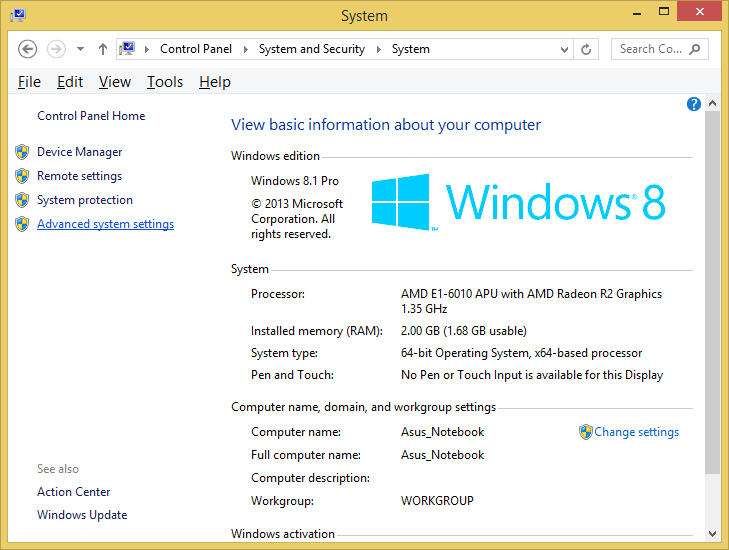
  4. In the System window, click on Advanced System Settings on the left sidebar.

    click on Advanced System Settings on the left sidebar

  5. In the System Properties window (Advanced tab):

    click Advanced tab

    • Click the Environment Variables button.

      click the Environment Variables button.

    • Under the System Variables section, find Path variable.
      find and click Path variable in the middle

    • Click Edit button to modify the existing variable, or New button to create a new one, if the Path variable is not exist.
      Click the Edit button or click the New button.
    • In the Variable Name field, ensure you enter Path.
      Enter Variable name, enter Variable value, then click OK button

      In the Variable Value field, add the path of our Python installation directory (e.g., "C:\Program Files\Python\pythonXX").
    • Click OK button on the Edit System Variable window, to apply the changes.
  6. Click OK button again, click OK button again in System Properties window, and restart the computer to ensure the changes take effect.

    Click OK button on the Environment Variables window


    Click OK button again in System Properties window


    Click Start button > click Power Options button
    on the right top corner > click Restart

Notes

  • In the step 1 to open CommandPrompt, click How To Launch Command Prompt
  • After step 6 from above, then you can check to the "Set The Python Path Variable Via The Command Line" in the step 4 below. After finish, you can go to the next lesson.

Set The Python Path Variable Via The Command Line


WARNING use the step "Set Up The Python Path variable In Microsoft Windows 8" from above, if you have Microsoft Windows Environment Variables Path more than 1024 characters!

If you would prefer to set the Python Path Variable via the command line, and your Microsoft Windows Environment Variables Path is less than 1024 characters, follow this below step  :
  1. Open Command Prompt (make sure you "Run as administrator" with right click mouse, so you're able to add a system environment variable).

    Open the "Start menu" and click "All apps" down arrow button
     in the bottom-left corner.


    Find and hover the Command Prompt


    right click mouse on Command Prompt, then click "Run as administrator"

  2. Set the value of the environment variable to your Python installation path as follows:
    setx /m PATH "C:\Program Files\Python\pythonXX"

    type setx /m PATH "C:\Program Files\Python\pythonXX"

  3. Close and start Command Prompt window again to reload the environment variables and restart the computer to ensure the changes take effect.

    Close the Command Prompt window


    Click Start button > click Power Options button
    on the right top corner > click Restart

  4. After restart the Microsoft Windows. Use the step 1 again to open Command Prompt window. Then use the following command to check the path of your Python installation been added correctly.
    echo %PATH%

    type echo %PATH%

Notes: 
  • Be aware if you have Microsoft Windows Environment Variables Path over than 1024 characters when assigning contents to a variable using setx, it can result in loss of data previously held by the target variable.
  • If the Path variable or Expandable Environment-Variable Strings %PATH% is exist and not empty then you can add semicolon ( ; ) and then put the directory where the Python executable is installed in our system.
  • Be aware If You running the command with an existing variable without double quotes (" "), Expandable Environment-Variable Strings %PATH% and semicolon ( ; ) can be removes any variable references.
  • Only administrators account can change the Environment Variable.
  • Non standard Command Prompt or PowerShell may not running well.
  • XX is the python version.
  • You can place the installed Python inside the no matter folder that able to execute your Python script and compile your Python script, for example "C:\Program Files\Python\pythonXX".


Bibliography

Introduction to computation and programming using Python : with application to computational modeling and understanding data;John V. Guttag;The MIT Press
Python;Abhishek Singh
Python;David Beazley;O'Reilly
Python Crash Course;Eric Matthes;No Starch Press
Python Crash Course;Erick Myers
Python;Dr. Joseph Teguh Santoso, S.Kom., M.Kom
Python;Jubilee Enterprise;Elex Media Komputindo
Python;Budi Raharjo;Informatika
Python for Everybody;Dr. Charles Russell Severance, et. al.
Python for Scientists;John M. Stewart, et. al.
Quick Python;David Matuszek;Routledge
https://superuser.com/
https://support.microsoft.com/en-us
https://www.bleepingcomputer.com/

Sabtu, 22 Juni 2024

How To Launch Command Prompt

command prompt

How To Launch cmd.exe / The Command Prompt (cmd.exe)

Method 1 − Go to C:\Windows\System32 and double click on the cmd file.
Method 2 − Via the run command :
  1. Open the Start menu and click All apps in the upper-right corner.
  2. Scroll through the list of apps and click Windows Tools.
  3. Click Run
  4. Type cmd to run Command Prompt application.

How To Launch cmd.exe To open with administrative privileges, 

  1. Open the Start menu and click All apps in the upper-right corner.
  2. Scroll through the list of apps and click Windows Tools.
  3. Right Click Run and choose Run as administrator.
  4. Type cmd to run Command Prompt application.


command line, terminal software, shell program, run, open, running

Bibliography

https://www.howtogeek.com/
https://www.minitool.com/
https://www.wikipedia.org/

Related Post


Kamis, 24 Juli 2025

How to Creating A JAR File Using the Command Line

Prerequisites

Before you begin, ensure you have the following tools on your system:
  • Java Development Kit (JDK) installed and configured in your system's PATH. You must download JDK from the official Java website, if you don't have JDK. JDK is required for compiling Java code (javac) and running JAR files (java).
    If you want to learn default Java Path For Windows And Linux Environment, click Default Java Path Environment >
    You must setup PATH environment, click Set The JAVA_HOME variable >
    To check the Java version, click How To Check Your Java Version >
  • A Text Editor, for example Notepad: To write your Java code and potentially to write a manifest file.
  • A Terminal or Command Prompt: To execute compilation and JAR creation commands.

Assumption

  • Ensure you have a Java class with a main method ( after You compiled a Java source code File ), which serves as the entry point for your Java simple application (JAR) or Java simple program (JAR). You can use this Java exercise, click Hello World In Java and then you must compile the Java Program, click How To Compile Java 1.
  • Ensure you understand to using Text Editor and a Terminal or Command Prompt. If you are not understand to using Text Editor and Command Prompt, read Notes below.

The Steps

1. First we navigate to the root directory of your Java class files project directory. In this example the directory is D:\demo\java\GettingStarted\HelloWorld.

navigate to the root directory
of your Java class files project directory

list your root directory
of your Java class files project directory

2. Create a Manifest File: Open your Text Editor and then create a text file (e.g., manifest.txt) and add the Main-Class entry. Make sure there's a newline at the end of the Main-Class line. The full contents Of Manifest.txt example:
Main-Class: helloWorld
Class-Path: helloWorld.jar

Notepad program show

Type Manifest.txt example contents

3. Save file As Manifest.txt in directory D:\demo\java\GettingStarted\HelloWorld\.

click File > Save As menu

Navigate to D:\demo\java\GettingStarted\HelloWorld\.
And then type Manifest.txt in File name box.

click Save button

file Manifest.txt has saved

4. Create the JAR File
Now, use the jar command to package your compiled .class file(s) and the manifest file (if applicable) into a single .jar file, for example:
jar cvfm helloWorld.jar helloWorld helloWorld.class
The options and arguments used in this command are: 
-c: Creates a new archive.
-v: Provides verbose output, listing the files as they are added.
-f: Specifies the filename of the JAR archive (helloWorld.jar).
-m: Specifies the manifest file to use (manifest.txt).

Create the JAR File

The JAR file has created

5. Run the Executable JAR
If you created an executable JAR, you can run it directly from the Command Prompt:
java -jar helloWorld.jar
You should see the output: Hello World

Run the Executable JAR

The Executable JAR has succeed to run

Notes


<< back to  Study About Java 1

Bibliography

https://docs.oracle.com/ ( manual ebook )
https://www.cmu.edu/ ( university )
https://www.helsinki.fi/ ( university )
https://www.coursera.org/
https://www.iitk.ac.in/ ( university )
https://www.ntu.edu.sg/ ( university )