Search In This Website

Menampilkan postingan yang diurutkan menurut relevansi untuk kueri python. Urutkan menurut tanggal Tampilkan semua postingan

Senin, 05 Mei 2025

Set Up The Python In Microsoft Windows 8 With Picture

Set Up The Python Path variable In Microsoft Windows 8

  1. Let’s locate the directory where the Python executable is installed in our system, and note down the path to this directory.

    Locate the directory of the Python executable folder
    Locate the directory of the Python executable folder

  2. Open the "Start menu" and click "All apps" down arrow button in the bottom-left corner.

    Start Menu Windows opened

  3. Scroll through the list of apps and click "Control Panel" on the "Windows System". The Control Panel will appear on the screen.

    Scroll through the list of apps 1
    Scroll through the list of apps 1


    Scroll through the list of apps 2
    Scroll through the list of apps 2


    click "Control Panel" on the "Windows System"
    click "Control Panel" on the "Windows System"


    Control Panel opened
    Control Panel opened

    • Under "View by:",  click "Category"

      Under the "View by:",  click "Category"

    • then select the “System and Security” section.

      select the “System and Security” section

    • then select the “System” section on the right side.

      then select the “System” section on the right side.

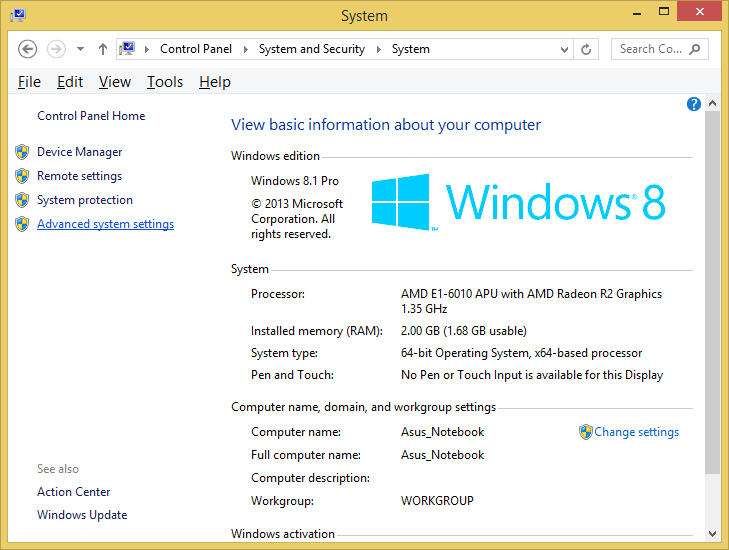
  4. In the System window, click on Advanced System Settings on the left sidebar.

    click on Advanced System Settings on the left sidebar

  5. In the System Properties window (Advanced tab):

    click Advanced tab

    • Click the Environment Variables button.

      click the Environment Variables button.

    • Under the System Variables section, find Path variable.
      find and click Path variable in the middle

    • Click Edit button to modify the existing variable, or New button to create a new one, if the Path variable is not exist.
      Click the Edit button or click the New button.
    • In the Variable Name field, ensure you enter Path.
      Enter Variable name, enter Variable value, then click OK button

      In the Variable Value field, add the path of our Python installation directory (e.g., "C:\Program Files\Python\pythonXX").
    • Click OK button on the Edit System Variable window, to apply the changes.
  6. Click OK button again, click OK button again in System Properties window, and restart the computer to ensure the changes take effect.

    Click OK button on the Environment Variables window


    Click OK button again in System Properties window


    Click Start button > click Power Options button
    on the right top corner > click Restart

Notes

  • In the step 1 to open CommandPrompt, click How To Launch Command Prompt
  • After step 6 from above, then you can check to the "Set The Python Path Variable Via The Command Line" in the step 4 below. After finish, you can go to the next lesson.

Set The Python Path Variable Via The Command Line


WARNING use the step "Set Up The Python Path variable In Microsoft Windows 8" from above, if you have Microsoft Windows Environment Variables Path more than 1024 characters!

If you would prefer to set the Python Path Variable via the command line, and your Microsoft Windows Environment Variables Path is less than 1024 characters, follow this below step  :
  1. Open Command Prompt (make sure you "Run as administrator" with right click mouse, so you're able to add a system environment variable).

    Open the "Start menu" and click "All apps" down arrow button
     in the bottom-left corner.


    Find and hover the Command Prompt


    right click mouse on Command Prompt, then click "Run as administrator"

  2. Set the value of the environment variable to your Python installation path as follows:
    setx /m PATH "C:\Program Files\Python\pythonXX"

    type setx /m PATH "C:\Program Files\Python\pythonXX"

  3. Close and start Command Prompt window again to reload the environment variables and restart the computer to ensure the changes take effect.

    Close the Command Prompt window


    Click Start button > click Power Options button
    on the right top corner > click Restart

  4. After restart the Microsoft Windows. Use the step 1 again to open Command Prompt window. Then use the following command to check the path of your Python installation been added correctly.
    echo %PATH%

    type echo %PATH%

Notes: 
  • Be aware if you have Microsoft Windows Environment Variables Path over than 1024 characters when assigning contents to a variable using setx, it can result in loss of data previously held by the target variable.
  • If the Path variable or Expandable Environment-Variable Strings %PATH% is exist and not empty then you can add semicolon ( ; ) and then put the directory where the Python executable is installed in our system.
  • Be aware If You running the command with an existing variable without double quotes (" "), Expandable Environment-Variable Strings %PATH% and semicolon ( ; ) can be removes any variable references.
  • Only administrators account can change the Environment Variable.
  • Non standard Command Prompt or PowerShell may not running well.
  • XX is the python version.
  • You can place the installed Python inside the no matter folder that able to execute your Python script and compile your Python script, for example "C:\Program Files\Python\pythonXX".


Bibliography

Introduction to computation and programming using Python : with application to computational modeling and understanding data;John V. Guttag;The MIT Press
Python;Abhishek Singh
Python;David Beazley;O'Reilly
Python Crash Course;Eric Matthes;No Starch Press
Python Crash Course;Erick Myers
Python;Dr. Joseph Teguh Santoso, S.Kom., M.Kom
Python;Jubilee Enterprise;Elex Media Komputindo
Python;Budi Raharjo;Informatika
Python for Everybody;Dr. Charles Russell Severance, et. al.
Python for Scientists;John M. Stewart, et. al.
Quick Python;David Matuszek;Routledge
https://superuser.com/
https://support.microsoft.com/en-us
https://www.bleepingcomputer.com/

Kamis, 01 Agustus 2024

Set Up The Python In Microsoft Windows 8

Set Up The Python Path variable In Microsoft Windows 8

  1. Let’s locate the directory where the Python executable is installed in our system, and note down the path to this directory.
  2. Open the "Start menu" and click "All apps" down arrow button in the bottom-left corner.
  3. Scroll through the list of apps and click a "Control Panel" on the "Windows System". The Control Panel will appear on the screen.
    • Under "View by:",  click "Category"
    • then select the “System and Security” section.
    • then select the “System” section on the right side.
  4. In the System window, click on Advanced System Settings on the left sidebar.
  5. In the System Properties window (Advanced tab):
    • Click the Environment Variables button.
    • Under the System Variables section, find Path variable.
    • Click Edit button to modify the existing variable, or New button to create a new one, if the Path variable is not exist..
    • In the Variable Name field, enter Path
      In the Variable Value field, add the path to our Python installation directory (e.g., "C:\Program Files\Python\pythonXX")  to the list of paths if it’s not already there.
    • Click OK to apply the changes.
  6. Click OK again, click OK again in System Properties window, and restart the computer to ensure the changes take effect.

Set The Python Path Variable Via The Command Line

Notes

WARNING use the step "Set Up The Python Path variable In Microsoft Windows 8" from above, if you have Microsoft Windows Environment Variables Path more than 1024 characters!

If you would prefer to set the Python Path Variable via the command line:
  1. Open Command Prompt (make sure you "Run as administrator" with right click mouse, so you're able to add a system environment variable).
  2. Set the value of the environment variable to your Python installation path as follows:
    setx /m PATH "C:\Program Files\Python\pythonXX"
  3. Close and start Command Prompt window again to reload the environment variables then use the following command to check the it's been added correctly and restart the computer to ensure the changes take effect.
  4. Then use the following command to check the path to your Python installation been added correctly.  Then you should see the path to your Python installation.
    echo %PATH%
Notes: 
  • Be aware if you have Microsoft Windows Environment Variables Path over than 1024 characters when assigning contents to a variable using setx, it can result in loss of data previously held by the target variable like in this screencapture picture article post.
  • If the Path variable or Expandable Environment-Variable Strings %PATH% is exist and not empty then you can add semicolon ( ; ) and then put the directory from the Python executable is installed in our system.
  • Be aware If You running the command with an existing variable without double quotes (" "), Expandable Environment-Variable Strings %PATH% and semicolon ( ; ) can be removes any variable references.
  • Only administrators account can change the Environment Variable.
  • Non standard Command Prompt or PowerShell may not running well.
  • XX is the python version.
  • You can place the installed Python inside the no matter folder that able to execute your Python script and compile your Python script, for example "C:\Program Files\Python\pythonXX".


Bibliography

https://www.python.org/ ( manual ebook )
https://realpython.com/
https://superuser.com/
https://support.microsoft.com/en-us ( manual ebook )
https://learn.microsoft.com/ ( manual ebook )
https://winaero.com/
https://www.bleepingcomputer.com/
https://www.ionos.co.uk/
https://www.itechtics.com/
https://www.liquidweb.com/

install, setup, installation, python setup and usage, using python on windows, environment variable


Related Post

Sabtu, 09 September 2023

How-to-check-version-of-python-modules

How To Check Python Modules Using pip freeze

First step is open Command Line, and then:

To list all installed Python modules with their version numbers, use the following command:

  1. pip freeze
  2. and then press Enter on the keyboard.

To individually find the version number you can grep on this output on *NIX machines. For example:

  1. $ pip freeze | grep PyMySQL
  2. and then press Enter on the keyboard.
  3. The sample result:
    PyMySQL==0.7.11

On windows, you can use findstr instead of grep. For example:

  1. PS C:\> pip freeze | findstr PyMySql
  2. and then press Enter on the keyboard.
  3. The sample result:
    PyMySQL==0.7.11

Notes

  • pip freeze shows packages that you only installed via pip or pipenv command tool.
  • pip freeze excludes package management tools such as pip, wheeldistribute and setuptools, which are not needed for porting environments via requirements.txt, making it ideal for this purpose.
  • pip freeze generate output suitable for a requirements file (requirements.txt).

How To Check Python Modules Using pip list

To list all installed Python modules with their version numbers, use the following command:
  1. open Command Line, and then:
    pip list
  2. and then press Enter on the keyboard.
  3. The sample result:
    Package                             Version
    ---------------------------------- ----------
    PyMySQL                             0.7.11

To individually find the version number you can grep on this output on *NIX machines. For example:

  1. $ pip list | grep PyMySQL
  2. and then press Enter on the keyboard.
  3. The sample result:
    Package                             Version
    ---------------------------------- ----------
    PyMySQL                             0.7.11

On windows, you can use findstr instead of grep. For example:

  1. PS C:\> pip list | findstr PyMySql
  2. and then press Enter on the keyboard.
  3. The sample result:
    Package                             Version
    ---------------------------------- ----------
    PyMySQL                             0.7.11

How To List All Python Modules Index

to list all installed Python modules with python console, 

  1. Open Command Line
  2. type python command.
    and then press Enter on the keyboard.
  3. use the following command:
    help("modules")
    and then press Enter on the keyboard.
  4. The result will be display all Python modules index that are available after you have installed.

    display all Python modules index

If you want to quit from python console, type quit() command.

Warning:
If you have many installed Python modules, maybe thousands or more, there might be a potential of many spent time to show, so it is not surprising that it might hang your Python interactive console / Python interpreter / Python shell.

Notes: To see the more clear picture, click on the picture.

<< back to Study About Python


Bibliography:

https://docs.python.org/

https://pip.pypa.io/en/stable/

https://www.activestate.com/

https://realpython.com/

https://stackoverflow.com/

https://note.nkmk.me/en/

https://www.tutorialspoint.com/

https://www.digitalocean.com/

Related Topics:

Senin, 27 Maret 2023

How To Check Your Python Version

How To Check Your Python Version In Microsoft Windows


To Check The Python Version 2

  1. open Command Prompt.
  2. type  python –-version
    or
    type python –V
    ( must be V in capital text )
  3. press Enter on keyboard.


To Check The Python Version 3

  1. open Command Prompt.
  2. type python3 --version
    or
    type python –V
    ( must be V in capital text )
  3. press Enter on keyboard.

To Check PIP Version

PIP is package management tool in Python.

  1. open Command Prompt.
  2. type :
    • python -m pip show pip

      or
    • python -m pip --version

      or
    • pip -V
      ( must be V in capital text )
      or
    • pip --version
      or
    • pip3 --version
      to check PIP on Python 3
      or
    • pip3 -V
      to check PIP on Python 3
      or
    • pip list

  3. press Enter on keyboard.

 < to learn about Open Command Prompt in step 1, click How To Launch Command Prompt

To learn about check Sqlite version, click How To Check Sqlite Version >


<< back to Study About Python


Bibilography:

Master Python by Abhishek Singh;Python from the Very Beginning by John Whitington;Python Dash: Build Data Analysis and Visualization Apps with Plotly by Adam Schroeder, et. al.;Python Phrasebook by Brad Dayley;Python 3 Standard Library by Doug Hellman;Intuitive Python: Productive Development For Projects That Last by David Muller

command line, terminal, bash shell, installation, install

Related Post:

Rabu, 23 Juli 2025

Command Prompt Path And Most Common Program

Command Prompt Path / Terminal Path And The Most Common Command Prompt Program

Alternative Command Prompt Path to running Command Prompt:
  • %windir%\system32\cmd.exe /k
  • "C:\Windows\SysWOW64\cmd.exe" /k
  • "C:\Windows\System32\cmd.exe" /k
To learn about open Microsoft Windows Command Prompt, click:
Then you can type one of this following example of Command Prompt Program with common arguments:
  • Running Apache HTTP Server
    • C:\Program Files\Apache Software Foundation\Apache<version>\httpd.exe
  • Running A 32 bit Java Application Class
    • C:\Program Files (x86)\Java\jdk<version>\bin\java -cp . mainClassName
  • Running A 64 bit Java Application Class
    • C:\Program Files\Java\jdk<version>\bin\java -cp . mainClassName
  • Running A PlantUML Java Software (JAR)
    • C:\Program Files\Java\jdk<version>\bin\java -jar "C:\Program Files\PlantUML\plantuml.jar"
  • Login To 32 bit MySQL Command Prompt
    • C:\Program Files (x86)\MySQL\MySQL Server <version>\bin\mysql -u root -p
  • Login To 64 bit MySQL Command Prompt
    • C:\Program Files\MySQL\MySQL Server <version>\bin\mysql -u root -p
  • Running A 32 bit NodeJS Application Main File / NodeJS Application Script
    • C:\Program Files (x86)\nodejs\node app.js
  • Running A 64 bit NodeJS Application Main File / NodeJS Application Script
    • C:\Program Files\nodejs\node app.js
  • Running PHP Server
    • C:\Program Files\PHP\PHP -S localhost:8000
  • Executing PHP Files
    • C:\Program Files\PHP\PHP -f "php_script_name.php"
  • Running Python Script File Using Current User Account ( method 1 )
    • %USERPROFILE%\AppData\Local\Microsoft\WindowsApps\python.exe "python_script_name.py"
  • Running Python Script File Using Current User Account ( method 2 )
    • C:\Users\<username>\AppData\Local\Programs\Python\Python<version>\python.exe "python_script_name.py"
  • Running Python Script File Using Current User Account ( method 3 )
    • C:\Python<version>\python.exe "python_script_name.py"
  • Running Python Script File Using All User Account
    • C:\Program Files\Python<version>\python "python_script_name.py"
  • Running XAMPP Shell Command Prompt
    • C:\xampp\xampp_shell.bat
  • Running SumatraPDF with certain page
    • C:\Program Files (x86)\SumatraPDF\SumatraPDF.exe -page <pageNo> <file_path\file.pdf>

 << back to  Learn Microsoft Windows ( Road Map )

Bibliography

https://dev.mysql.com/ ( manual ebook )
https://docs.oracle.com/ ( manual ebook )
https://docs.python.org/ ( manual ebook )
https://httpd.apache.org/ ( manual ebook )
https://idcloudhost.com/
https://itpln.ac.id/ ( university )
https://learn.microsoft.com/ ( manual ebook )
https://nodejs.org/ ( manual ebook )
https://stackoverflow.com/
https://www.apachefriends.org/ ( manual ebook )
https://www.dell.com/
https://www.digitalocean.com/
https://www.php.net/ ( manual ebook )
https://www.sumatrapdfreader.org/ ( manual ebook )

Kamis, 01 Agustus 2024

Default Python Path Installation

The Python executable could be in a directory in C:\PythonXX\ or in your Local AppData\ folder (%LOCALAPPDATA%) or in your Program Files\ folder (%ProgramFiles%) or (%ProgramFiles(x86)%), for instance. If the executable were in AppData\, then the path would typically look something like this:
C:\Users\%USERNAME%\AppData\Local\Programs\Python\PythonXX

Notes:

  • The X is version based on your Python installed version.
  • To read more about %USERNAME%, %LOCALAPPDATA%, %USERPROFILE%, click on the Environment variable 1

<< back to Study About Python


Bibliography


https://python.org/
https://renenyffenegger.ch/
https://support.microsoft.com/en-us
https://winaero.com/
https://www.advancedinstaller.com/
https://www.bleepingcomputer.com/
https://www.ionos.co.uk/
https://www.itechtics.com/
https://www.liquidweb.com/

Senin, 10 Maret 2025

How To Check Version Of Tkinter ( Python )

  1. To check the Tkinter in the python, open Command Prompt.
  2. type python -m tkinter
  3. press Enter on keyboard.
type python -m tkinter

after press Enter on keyboard

Notes

  • Tkinter is included in Python 3 core installer on Microsoft Windows.
  • If Tkinter is installed and working correctly, a small popup window will appear. The first line at the top of the window should state, This is Tcl/Tk version 8.6.

 < to learn about Open Command Prompt in step 1, click How To Launch Command Prompt

<< back to Study About Python


command line, terminal, python, bash shell, installation, install

Related Post

Rabu, 30 Juli 2025

How To Check Python GTK Version

Prerequisites:

  1. Install Python. In this example using Python 2.7.13
  2. Install PythonGTK.

Tutorial

1. Open Command Prompt.
2. Running your Python interactive console / Python interpreter / Python shell by typing python.

3. Typing :
import pygtk
import gtk
print(gtk.pygtk_version)
print(gtk.gtk_version)
4. Then for print(gtk.pygtk_version) you get output similar to this :
(2, 24, 0)
5. Then for print(gtk.gtk_version) you get output similar to this :
(2, 24, 10)


<< back to Study About Python

Rabu, 21 Mei 2025

Software Programming Environment Variable

The sample list of Programming Environment Variable and Common Programming Default Path:
Notes Use quotation marks when specifying long filenames or paths with spaces.


to learn about Environment Variable, click Environment variable 1 >

to learn about Top Command Prompt Command list, click Top Command Prompt >

to learn about change a directory in Command Prompt, click Change Directory In Command Prompt >