- Open Google Play Store.

- At the search bar ( bottom position ), tap labels "Search".

Menampilkan postingan yang diurutkan menurut tanggal untuk kueri installation. Urutkan menurut relevansi Tampilkan semua postingan
Menampilkan postingan yang diurutkan menurut tanggal untuk kueri installation. Urutkan menurut relevansi Tampilkan semua postingan
Selasa, 14 April 2026
Install Google Docs


Selasa, 27 Januari 2026
Running AWebServer Http Apache PHP Sql
Learning Objectives:
- Setup and running an Apache, PHP local web server using 'AWebServer Http Apache PHP Sql'.
- Prepare an Android Smartphone from version 6.
- Open Google Play Store.
- Download AWebServer app on your Android device by click 'Install' button.

- After your download and installation has finished. Open the AWebServer app.

- If you have not purchased AWebServer, tap 'Continue to app' in the top right corner.

- tap 'Maybe later'.

- In the first tab (Web Server). Click 'Start' button on the 'Service' row.

- After 'Start' button pressed.

- Open web browser, for example Opera browser. Type 'http://192.168.0.2:8080' without single quotes.


<< back to Study About PHP MySql In Android
<< go to Learn Android Apps Development
Minggu, 28 September 2025
Set The JAVA_HOME variable In Microsoft Windows 8
From step 1 to step 10, you can study at the Set Up A Java Development Kit In Microsoft Windows 8 With Picture
- Let us locate the directory where the JDK is installed on our system, and note down the path to this directory.
- Open the Start menu and click "All apps" down arrow button in the bottom-left corner.
- Scroll through the list of apps and click "Control Panel" on the "Windows System".
- The Control Panel will appear on the screen.
- Under "View by:" on the right side, click "Category",
- After then select the “System and Security” section.
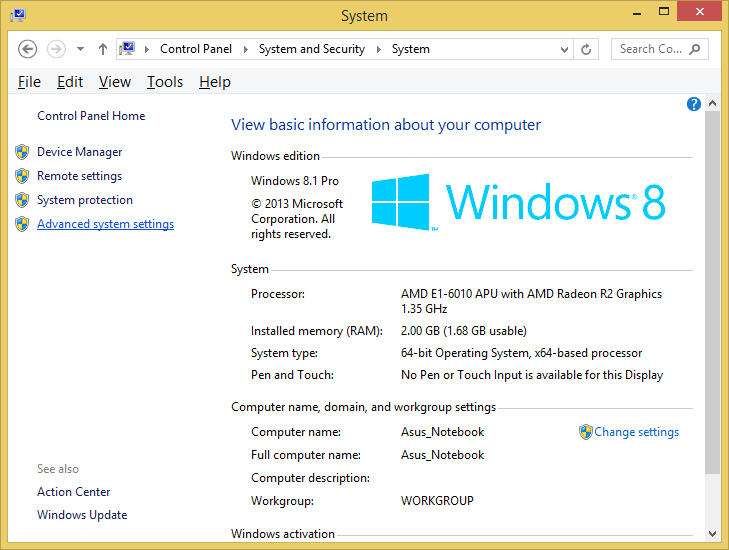
- then select the “System” section on the right side.
- In the System window, click on Advanced System Settings on the left sidebar.
- In the System Properties window (Advanced tab):
- Click the Environment Variables button.
Add JAVA_HOME Variable In Microsoft Windows 8
This following step to add JAVA_HOME variable:
- Under the System Variables section, click a New button to create a new one.

- In the Variable Name field, type JAVA_HOME.

- In the Variable Value field, enter the path to our JDK installation directory (e.g., in this post C:\runtime\Java\jdkX.X.X_XX\). Then press OK button.


Add %JAVA_HOME% To The Path Of Windows Environment Variable
This following step to add %JAVA_HOME% to the Windows Environment Variable:
- In the System Properties window, select the Path variable under the System Variables section. Click Edit button,

- and add %JAVA_HOME%\bin to the list of paths if it’s not already there. Click OK button.

- Click OK button to apply the changes and restart the computer to ensure the changes take effect.


Check %JAVA_HOME% Has Installed Successfully
- Start Command Prompt window then use the following command to check the %JAVA_HOME% has been added correctly.

- echo %JAVA_HOME%. You should see the path to your JDK (or JRE) installation location without bin folder.


after this you can follow and practise this optional step below according to your condition:
Edit JAVA_HOME
- Under the System Variables section, found JAVA_HOME variable, click Edit button to modify the existing variable.

- change the Variable Value field with enter the path to our JDK installation directory (e.g., in this post C:\runtime\Java\jdkX.X.X_XX\ ). Then press OK button.


NOTES:
- In the step 14 about Check %JAVA_HOME% Has Installed Successfuly from above, you can learn to open CommandPrompt, with click How To Launch Command Prompt or click How To Launch Command Prompt In Windows 8
- X is version based on your Java installed version.
<< back to Study About Java 1
Bibliography
https://www.asus.com/ ( hardware )
https://www.codecademy.com/
https://www.youtube.com/@ProgrammingKnowledge
https://docs.oracle.com/ ( manual ebook )
Senin, 22 September 2025
Set Up A Java Development Kit In Microsoft Windows 8 With Picture
- Let’s locate the directory where the Java executable is installed in our system, and note down the path to this directory.

Locate the directory of the Java executable folder -
Open the "Start menu" and click "All apps" down arrow button in the bottom-left corner.

Start Menu Windows opened 
"All apps" down arrow button in the bottom-left corner. - Scroll through the list of apps and click "Control Panel" on the "Windows System".

Scroll through the list of apps then click "Control Panel" on the "Windows System" - The Control Panel will appear on the screen.

Control Panel opened - Under "View by:" on the right side, click "Category",

Under "View by:", click "Category", - After then select the “System and Security” section.

select the “System and Security” section - then select the “System” section on the right side.

then select the “System” section on the right side. - In the System window, click on Advanced System Settings on the left sidebar.

click on Advanced System Settings on the left sidebar - After In the System Properties window (Advanced tab):

click Advanced tab - Click the Environment Variables button.

click the Environment Variables button. - Under the System Variables section, find Path variable.

find and click Path variable in the middle - Click Edit button to modify the existing variable, or New button to create a new one, if the Path variable is not exist.

Click the Edit button or click the New button. - In the Variable Name field, ensure you enter Path. In the Variable Value field, add the path of our Java installation directory (e.g., "C:\runtime\Java\jdk1.6.0_21\bin"). Click OK button on the Edit System Variable window, to apply the changes.

Enter Variable name, enter Variable value, then click OK button - Click OK button again, click OK button again in System Properties window.

Click OK button on the Environment Variables window. 
Click OK button again in System Properties window - And restart the computer to ensure the changes take effect.
Click Start button > click Power Options button
on the right top corner > click Restart




Notes
- In the step 1 to learn to open CommandPrompt, click How To Launch Command Prompt or click How To Launch Command Prompt In Windows 8
- In the step 13 from above, remember to separate each Path Environment Variable value with semicolon ( ; ).
jdk, java sdk, software development kit, application, programming, install
<< back to Study About Java 1
goto Set The JAVA_HOME variable >
goto Java Version Notes 1 >
goto Hello World In Java >
goto How To Compile Java 1 >
Bibliography
https://www.youtube.com/@OSTechHelp
https://www.youtube.com/@YTRtutorial
Java Ebook Oracle Press
Java Ebook Pearson Publisher
Rabu, 17 September 2025
Hello World In PlantUML
- type this on a text editor:
@startuml
skinparam HeaderFontColor Black
skinparam FooterFontColor Black
header
This is a header
endheader
title
Hello World In PlantUML
endtitle
note right
This is a note
end note
legend
This is a legend
endlegend
caption figure 1 Hello World
footer
This is a footer
endfooter
@enduml
- Open your Command Prompt, to learn how to open Command Prompt click How To Launch Command Prompt
- Go to your PlantUML installation, click Check PlantUML Installation to learn how to go to PlantUML installation folder.

- type
java -Xms512m -Xmx1024m -jar plantuml.jar "D:\work\blogging\programming\UML\PlantUML\helloWorld.plantuml"
in Command Prompt
- See the output, below


<< back to Study About UML Diagram
Senin, 25 Agustus 2025
How To Start MySql From Command Line
How To Start MySQL Server From Microsoft Command Line In Microsoft Windows 8.1
- Open your Microsoft Windows Command Line As Administrator.
To learn how to open Microsoft Windows Command Prompt, click
How To Launch Command Prompt
or
How To Launch Command Prompt In Windows 8 - Go To MySQL Server directory
TypeD:and press Enter. - Type
CD \softRun\xampp-win32-1.6.7\mysql\bin\
- Type this following command:
mysqld --console - Press Enter
- This will display mysqld status, mysql version and mysql port.


Notes
- In the Step 2 and 3, adjust the path based on your MySQL installation. To learn how to Go to MySQL directory, click Top Command Prompt (CD / CHDIR)
- In the Step 6, it maybe display different with your MySQL.
How To Find Out Is Mysql Running?
- Open your Microsoft Windows Command Line As Administrator.
To learn how to open Microsoft Windows Command Prompt, click
How To Launch Command Prompt
or
How To Launch Command Prompt In Windows 8 - Go To MySql Server directory
TypeD:and press Enter. - Type
CD \softRun\xampp-win32-1.6.7\mysql\bin\ - Type this following command:
mysqladmin --user=root ping - Press Enter
- This will display mysqld status is alive.


Notes
- In the Step 2 and 3, adjust the path based on your MySQL installation. To learn how to Go to MySQL directory, click Top Command Prompt (CD / CHDIR)
- In the Step 4, adjust root to your username.
How To Find Out Is MySQL Running In The Right Port According To Our Preferences?
- Open your Microsoft Windows Command Line As Administrator.
To learn how to open Microsoft Windows Command Prompt, click
How To Launch Command Prompt
or
How To Launch Command Prompt In Windows 8 - Type this following command:
netstat -ano | findstr 3306 - Press Enter
- This will display ip address and port status is LISTENING.


- In the Step 2 and 3, adjust the 3306 with your port.
< to check MySql version, click How To Check MySQL Version
<< back to Study About PHP 1
Rabu, 30 Juli 2025
Study About Python
Getting Started
- Default Python Path Installation
- Set Up The Python In Microsoft Windows 8
- Set Up The Python In Microsoft Windows 8 With Picture
- How To Check Your Python Version
- How-to-check-version-of-python-modules
- How To Check Version Of Tkinter ( Python )
- How To Check Python GTK Version
- Command Prompt Path And Most Common Program
- Software Programming Environment Variable
- Uninstall Python Package
Tools
Senin, 14 Juli 2025
How To Check Tomcat Version
Check (JSP / Java Server Pages) Apache Tomcat Server Version Using the Microsoft Windows Command Line
- Open your Command Line or Terminal. If you want to learn how to open Command Line, click How To Launch Command Prompt In Windows 8.
- Type the command:
D:
to change drive to drive D: ( you can change to the other drive depend to your Apache Tomcat server installation drive address )
- Type the command:
CHDIR D:\softRun\xampp-win32-1.7.4\tomcat\lib
to change folder location to Apache Tomcat Server address. - Type the command:
java -cp catalina.jar org.apache.catalina.util.ServerInfo
then press Enter on keyboard.


Notes
- If you do not have your JAVA_HOME directory included in your PATH environment variable, you need to include the path to your Java SDK path (for example C:\runtime\Java\jdk1.8.0_66\ directory) in the JAVA_HOME environment variable. To learn to setup JAVA_HOME environment variable click Set The JAVA_HOME variable. Then (<java-home>/bin directory) on PATH environment variable. Then you must setup JDK ( Java Development Kit ) in Set Up A Java Development Kit In Microsoft Windows 8 With Picture.
- The Apache Tomcat in D:\softRun\xampp-win32-1.7.4\tomcat\lib is just example, you can use the other Apache Tomcat.
<< back to Study About Java 1
Minggu, 01 Juni 2025
Some Of Information Technology Default Path
to see Command Prompt Default Installation Path and Most Common Default Installation Path, click Command Prompt Path And Most Common Program
to see ImageMagick Default Installation Path, Check ImageMagick Version
to see Java Default Installation Path, click
to see Notepad Default Installation Path, click Notepad Path
to see PHP Default Path, click PHP Local Server Folder Location
to see Python Default Installation Path,
Ruby Default Installation Path, click
Visual Basic Path, click
to see the other Software Programming Environment Variable >
Notes:
- Some old Windows version has limited path lengths to hundred characters. This meant that paths longer than this would not resolve and errors would result. In the latest versions of Windows, this limitation can be expanded to approximately ten thousand characters.
<< back to Learn Microsoft Windows ( Road Map )
using windows, python full installation path
How To Check Your FFMpeg Version
How To Check Your FFMpeg Version In Microsoft Windows
- open Command Prompt.
- type ffmpeg --version
- press Enter on keyboard.
 |
| check ffmpeg version |
Notes:
- To see the more clear picture, click on the picture
Bibliography
https://github.com/
https://github.com/ShareX/ShareX/
https://superuser.com/
https://www.ffmpeg.org/ ( manual ebook )
command line, terminal, bash shell, installation, install
Related Post
- How To Check Your Python Version
- Check C++ Installation
- How To Check GhostScript Version
- Check LaTeX Version 1
- Topic about Java
- How To Check Your Java Version
- Check Version Of Windows Operating System
- Environment variable 1
- How To Check PHP Version
- How To Check The GTags or CTags Version
- How To Check Your Git Version
Rabu, 21 Mei 2025
Software Programming Environment Variable
The sample list of Programming Environment Variable and Common Programming Default Path:
- Apache
C:\apache1.3\bin\ - How to Check Apache HTTP Server Version
Notes 1.3 is a version number, you can use the other available number according to your needs or your task requirements. - Apache Ant
- Asciidoctor
- CTags and GTags
- Ghostscript
- Git
- FFMpeg
- ImageMagick
- Java
C:\jdk1.7.0_80\bin\ - Default Java Path Environment
- Set The JAVA_HOME variable
- How To Check Your Java Version
Notes 1.7.0_80 is a version number, you can use the other available number according to your needs or your task requirements. - Eclipse Version
- Latex
- For MiKTex:
"C:\Program Files (x86)\MiKTeX 2.9\miktex\bin\"
Notes 2.9 is a version number, you can use the other available number according to your needs or your task requirements. - For TexLive:
C:\texlive\2023\bin\windows\
Notes 2023 is a version number, you can use the other available number according to your needs or your task requirements. - Check LaTeX Version 1
- Maven
- MySql
- PHP
- Python
C:\Python21\ - Default Python Path Installation
- Set Up The Python In Microsoft Windows 8
- Set Up The Python In Microsoft Windows 8 With Picture
- How To Check Your Python Version
- How-to-check-version-of-python-modules
- How To Check Version Of Tkinter ( Python )
Notes 21 is a version number, you can use the other available number according to your needs or your task requirements. - Ruby
C:\Ruby24\bin\ - How To Check Your Ruby Version
Notes 24 is a version number, you can use the other available number according to your needs or your task requirements. - How-to-check-version-of-ruby-gem >
- Microsoft Windows
Notes Use quotation marks when specifying long filenames or paths with spaces.
to learn about Environment Variable, click Environment variable 1 >
to learn about Top Command Prompt Command list, click Top Command Prompt >
to learn about change a directory in Command Prompt, click Change Directory In Command Prompt >
Senin, 19 Mei 2025
Table Creole PlantUML About Microsoft Excel Arithmetic Operator
Type this following plantUML source code in your plantUML editor:

@startuml
/' Creole Table PlantUML '/
title
Arithmetic Operator In Microsoft Office Excel Using Creole PlantUML
|= Arithmetic\n Operator |= Symbol |= Example |= Result |
|Addition |+ |10+5 |15 |
|Subtraction |- |10-5 |5 |
|Multiplication |* |10*5 |50 |
|Division |/ |10/5 |2 |
|Exponent |^ |10^5 |100000 |
|Percentage |% |10% |0.10 |
end title
@enduml
Output:

Notes
- Column Separation: Use the pipe symbol | to separate columns within the note.
- Row Separation: New lines create rows.
- Equal Sign ( = ) as the first char of a cell (after | the pipe symbol) indicates whether to make it bold (usually used for headers).
plant uml, unified modelling language, system analyst and design, textual diagram, text to diagram, textual modelling
<< back to Study About UML Diagram
<< back to Study About ERD / DFD
Related Post
Senin, 05 Mei 2025
Set Up The Python In Microsoft Windows 8 With Picture
Set Up The Python Path variable In Microsoft Windows 8
<< Previous lesson: Default Python Path Installation
- Let’s locate the directory where the Python executable is installed in our system, and note down the path to this directory.

Locate the directory of the Python executable folder - Open the "Start menu" and click "All apps" down arrow button in the bottom-left corner.

Start Menu Windows opened - Scroll through the list of apps and click "Control Panel" on the "Windows System". The Control Panel will appear on the screen.

Scroll through the list of apps 1 
Scroll through the list of apps 2 click "Control Panel" on the "Windows System" Control Panel opened - Under "View by:", click "Category",
Under the "View by:", click "Category" - then select the “System and Security” section.
select the “System and Security” section - then select the “System” section on the right side.
then select the “System” section on the right side. - In the System window, click on Advanced System Settings on the left sidebar.

click on Advanced System Settings on the left sidebar - In the System Properties window (Advanced tab):
click Advanced tab - Click the Environment Variables button.
click the Environment Variables button. - Under the System Variables section, find Path variable.
find and click Path variable in the middle - Click Edit button to modify the existing variable, or New button to create a new one, if the Path variable is not exist.
Click the Edit button or click the New button. - In the Variable Name field, ensure you enter Path.

Enter Variable name, enter Variable value, then click OK button
In the Variable Value field, add the path of our Python installation directory (e.g., "C:\Program Files\Python\pythonXX"). - Click OK button on the Edit System Variable window, to apply the changes.
- Click OK button again, click OK button again in System Properties window, and restart the computer to ensure the changes take effect.
Click OK button on the Environment Variables window Click OK button again in System Properties window 
Click Start button > click Power Options button
on the right top corner > click Restart


Notes
- In the step 1 to open CommandPrompt, click How To Launch Command Prompt
- After step 6 from above, then you can check to the "Set The Python Path Variable Via The Command Line" in the step 4 below. After finish, you can go to the next lesson.
Set The Python Path Variable Via The Command Line
WARNING use the step "Set Up The Python Path variable In Microsoft Windows 8" from above, if you have Microsoft Windows Environment Variables Path more than 1024 characters!
If you would prefer to set the Python Path Variable via the command line, and your Microsoft Windows Environment Variables Path is less than 1024 characters, follow this below step :
- Open Command Prompt (make sure you "Run as administrator" with right click mouse, so you're able to add a system environment variable).

Open the "Start menu" and click "All apps" down arrow button
in the bottom-left corner.
Find and hover the Command Prompt 
right click mouse on Command Prompt, then click "Run as administrator" - Set the value of the environment variable to your Python installation path as follows:
setx /m PATH "C:\Program Files\Python\pythonXX"
type setx /m PATH "C:\Program Files\Python\pythonXX" - Close and start Command Prompt window again to reload the environment variables and restart the computer to ensure the changes take effect.

Close the Command Prompt window 
Click Start button > click Power Options button
on the right top corner > click Restart - After restart the Microsoft Windows. Use the step 1 again to open Command Prompt window. Then use the following command to check the path of your Python installation been added correctly.
echo %PATH%
type echo %PATH%


Notes:
- Be aware if you have Microsoft Windows Environment Variables Path over than 1024 characters when assigning contents to a variable using setx, it can result in loss of data previously held by the target variable.
- If the Path variable or Expandable Environment-Variable Strings %PATH% is exist and not empty then you can add semicolon ( ; ) and then put the directory where the Python executable is installed in our system.
- Be aware If You running the command with an existing variable without double quotes (" "), Expandable Environment-Variable Strings %PATH% and semicolon ( ; ) can be removes any variable references.
- Only administrators account can change the Environment Variable.
- Non standard Command Prompt or PowerShell may not running well.
- XX is the python version.
- You can place the installed Python inside the no matter folder that able to execute your Python script and compile your Python script, for example "C:\Program Files\Python\pythonXX".
Next Lesson: How To Check Your Python Version >>
Bibliography
Introduction to computation and programming using Python : with application to computational modeling and understanding data;John V. Guttag;The MIT Press
Python;Abhishek Singh
Python;David Beazley;O'Reilly
Python Crash Course;Eric Matthes;No Starch Press
Python Crash Course;Erick Myers
Python;Dr. Joseph Teguh Santoso, S.Kom., M.Kom
Python;Jubilee Enterprise;Elex Media Komputindo
Python;Budi Raharjo;Informatika
Python for Everybody;Dr. Charles Russell Severance, et. al.
Python for Scientists;John M. Stewart, et. al.
Quick Python;David Matuszek;Routledge
https://superuser.com/
https://support.microsoft.com/en-us
https://www.bleepingcomputer.com/
install, setup, installation
Related Post
Langganan:
Postingan (Atom)
-
 1. type this following latex code in Latex editor for drawing a number line: % !TEX TS-program = pdflatex % !TEX encoding = UTF-8 Unicode % ...
 -
< Previous Customizing Latex Font Style 2 Serif Fonts This following Latex font suggest to minimal study on the screen only ( because mo...
-
Kelipatan suatu bilangan adalah hasil kali dari suatu bilangan tersebut dengan bilangan asli. Cara Menentukan Kelipatan Bilangan Cara menent...
-
1. Latex Basics, read more on point: 5.1. Fonts In Latex read to Basic Formatting In Latex 1.1 Special Characters In Latex, read m...
-
Akar kuadrat adalah salah satu dari dua faktor yang sama dari suatu bilangan. Contoh: 9 = 3 karena 3 2 = 9 Anggota Himpunan adalah suatu o...