Search In This Website

Menampilkan postingan yang diurutkan menurut tanggal untuk kueri python. Urutkan menurut relevansi Tampilkan semua postingan

Kamis, 11 September 2025

Python Website Tutorial Recommendation

From Beginner To Expert

https://docs.python.org/ ( manual ebook )

https://wiki.python.org/ ( community manual ebook )

https://www.codecademy.com/

https://teamtreehouse.com/

From Beginner To Luxury

https://realpython.com/

https://www.programiz.com/

https://www.geeksforgeeks.org/

For Self Learning Students

https://mimo.org/

https://www.learnpython.org/

https://medium.com/

https://www.sololearn.com/


Notes:

  • The above information maybe change according to each website in the next day!
  • Choose one or several website tutorial according to your needs or your task requirements.


<< back to Study About Python


Bibliography

https://www.topbrand-award.com/

https://mikkegoes.com/

Hello World In Python

1. Type this following Python source code in your IDE:

# Prints "Hello, World" in the terminal window

print("Hello, World");

2. Save as helloWorld.py

3. Executing Python scripts from above by type python helloWorld.py


<< back to Study About Python

Kamis, 31 Juli 2025

Fungsi MIN Pada Excel

Fungsi MIN Pada Microsoft Excel

Fungsi MIN digunakan untuk menampilkan nilai atau angka minimum (terkecil) yang terdapat dalam suatu sel/range atau beberapa sel/range data. Bentuk penulisan fungsi adalah sebagai berikut,
=MIN(number1;number2; ...)

Penjelasan argumen fungsi MIN.

Keterangan
number
dapat berupa angka/bilangan, sel atau range yang berisi angka atau nilai logika. Excel mengizinkan Anda untuk mengisi argumen maksimal sebanyak 255.

Fungsi MINA Pada Microsoft Excel

Fungsi MINA digunakan untuk menampilkan nilai terkecil dari sekelompok data tanpa mengabaikan jenis data teks atau logika. Bentuk penulisan fungsi adalah sebagai berikut,
=MINA(value1;value2; ...)
Keterangan
value
dapat berupa angka/bilangan, sel atau range yang berisi angka, teks atau nilai logika. Jika nilai logika diisi dengan TRUE, Excel memberi nilai 1 dan jika nilai logika diisi dengan FALSE, Excel akan memberi nilai 0. Anda diizinkan untuk mengisi sampai dengan 255 argumen.

Studi kasus berikut disajikan data yang diperlihatkan dalam gambar.dan table berikut ini:

ABCDEFGHIJKL
3  DATA MIN DATA  MIN DATA  MIN
4  0.10 =MIN(B4:B16)  15.00 =MIN(F4:F16)  15.00 =MIN(J4:J16)
5  0.85  27.00  27.00 
6  0.41 MINA 15.50 MINA 15.50 MINA
7  0.47 =MINA(B4:B16) 10.00 =MINA(F4:F16) 10.00 =MINA(J4:J16)
8  0.80  8.00   8.00  
9  0.70  7.00   7.00  
10 0.78  6.00   6.00  
11 0.70  5.00   5.00  
12 0.99  10.99  10.99 
13 0.07  12.00  12.00 
14 KOSONG  TRUE   FALSE 
15 0.75  15.00  15.00 
16 0.50  25.50  25.50 

Soal:

  • Input data di kolom B, dari B3 sampai dengan B16, seperti dalam tabel di atas.
  • Tulislah fungsi MIN di kotak cell D4, H4 dan L4.
  • Tulislah fungsi MINA di kotak cell D7, H7 dan L7


Related Post

Rabu, 30 Juli 2025

How To Check Python GTK Version

Prerequisites:

  1. Install Python. In this example using Python 2.7.13
  2. Install PythonGTK.

Tutorial

1. Open Command Prompt.
2. Running your Python interactive console / Python interpreter / Python shell by typing python.

3. Typing :
import pygtk
import gtk
print(gtk.pygtk_version)
print(gtk.gtk_version)
4. Then for print(gtk.pygtk_version) you get output similar to this :
(2, 24, 0)
5. Then for print(gtk.gtk_version) you get output similar to this :
(2, 24, 10)


<< back to Study About Python

Study About Python

Getting Started


Jumat, 25 Juli 2025

AsciiDoctor Block Content

AsciiDoctor Block Content consist of: Blockquote Block, Comment Block, Delimited Passthrough Blocks

AsciiDoctor Quoted Block (Blockquote) Example

If the quote or excerpt is more than one paragraph, place the text between delimiter lines consisting of four underscores (____).

AsciiDoctor Syntax Quote Block
[quote,attribution,citation title and information]
____
Quote or excerpt text
____

AsciiDoctor Example Quote Block
[quote,Monty Python and the Holy Grail]
____
Dennis: Come and see the violence inherent in the system. Help! Help! I'm being repressed!

King Arthur: Bloody peasant!

Dennis: Oh, what a giveaway! Did you hear that? Did you hear that, eh? That's what I'm on about! Did you see him repressing me? You saw him, Didn't you?
____

AsciiDoctor Example Quote Block Output


AsciiDoctor Comment Block Example

AsciiDoctor Comment Block is defined by a text that’s prefixed by one or more . 
consists of an arbitrary number of text lines bounded on either side by //// four slash delimiter lines.

//// 
A comment block.

Notice it's a delimited block.
////
or you can type AsciiDoctor Comment Block:
[comment]
--
Notice it's a comment block
--

AsciiDoctor Example Block

AsciiDoctor Block Content or AsciiDoctor Block Macro is defined by a single line that matches the block macro syntax.
The opening and closing delimiter in AsciiDoctor Block Content must match exactly, both in length and in sequence of characters.

====
Here's a sample AsciiDoc document:
====

AsciiDoctor Delimited Passthrough Block

A passthrough block is delimited by four plus signs (++++).

++++
<del>strike this</del> is marked as deleted.
++++


Bibliography

https://docs.asciidoctor.org/ ( manual ebook )
https://www.adoc-studio.app/
https://www.udemy.com/

Rabu, 23 Juli 2025

Command Prompt Path And Most Common Program

Command Prompt Path / Terminal Path And The Most Common Command Prompt Program

Alternative Command Prompt Path to running Command Prompt:
  • %windir%\system32\cmd.exe /k
  • "C:\Windows\SysWOW64\cmd.exe" /k
  • "C:\Windows\System32\cmd.exe" /k
To learn about open Microsoft Windows Command Prompt, click:
Then you can type one of this following example of Command Prompt Program with common arguments:
  • Running Apache HTTP Server
    • C:\Program Files\Apache Software Foundation\Apache<version>\httpd.exe
  • Running A 32 bit Java Application Class
    • C:\Program Files (x86)\Java\jdk<version>\bin\java -cp . mainClassName
  • Running A 64 bit Java Application Class
    • C:\Program Files\Java\jdk<version>\bin\java -cp . mainClassName
  • Running A PlantUML Java Software (JAR)
    • C:\Program Files\Java\jdk<version>\bin\java -jar "C:\Program Files\PlantUML\plantuml.jar"
  • Login To 32 bit MySQL Command Prompt
    • C:\Program Files (x86)\MySQL\MySQL Server <version>\bin\mysql -u root -p
  • Login To 64 bit MySQL Command Prompt
    • C:\Program Files\MySQL\MySQL Server <version>\bin\mysql -u root -p
  • Running A 32 bit NodeJS Application Main File / NodeJS Application Script
    • C:\Program Files (x86)\nodejs\node app.js
  • Running A 64 bit NodeJS Application Main File / NodeJS Application Script
    • C:\Program Files\nodejs\node app.js
  • Running PHP Server
    • C:\Program Files\PHP\PHP -S localhost:8000
  • Executing PHP Files
    • C:\Program Files\PHP\PHP -f "php_script_name.php"
  • Running Python Script File Using Current User Account ( method 1 )
    • %USERPROFILE%\AppData\Local\Microsoft\WindowsApps\python.exe "python_script_name.py"
  • Running Python Script File Using Current User Account ( method 2 )
    • C:\Users\<username>\AppData\Local\Programs\Python\Python<version>\python.exe "python_script_name.py"
  • Running Python Script File Using Current User Account ( method 3 )
    • C:\Python<version>\python.exe "python_script_name.py"
  • Running Python Script File Using All User Account
    • C:\Program Files\Python<version>\python "python_script_name.py"
  • Running XAMPP Shell Command Prompt
    • C:\xampp\xampp_shell.bat
  • Running SumatraPDF with certain page
    • C:\Program Files (x86)\SumatraPDF\SumatraPDF.exe -page <pageNo> <file_path\file.pdf>

 << back to  Learn Microsoft Windows ( Road Map )

Bibliography

https://dev.mysql.com/ ( manual ebook )
https://docs.oracle.com/ ( manual ebook )
https://docs.python.org/ ( manual ebook )
https://httpd.apache.org/ ( manual ebook )
https://idcloudhost.com/
https://itpln.ac.id/ ( university )
https://learn.microsoft.com/ ( manual ebook )
https://nodejs.org/ ( manual ebook )
https://stackoverflow.com/
https://www.apachefriends.org/ ( manual ebook )
https://www.dell.com/
https://www.digitalocean.com/
https://www.php.net/ ( manual ebook )
https://www.sumatrapdfreader.org/ ( manual ebook )

Selasa, 01 Juli 2025

Uninstall Python Package

To uninstall a Python Package follow this tutorial. 
1. First step is open Command Line with Administration (Admin) privileges, click How To Launch Command Prompt In Windows 8 >
2. In this example, we will uninstall python package zhon. Type this following command and then press Enter on keyboard:
python -m pip uninstall zhon


3. If ask for confirmation of uninstall deletion proceed is appear, type Y and then press Enter on the keyboard.
4. Uninstall is finished after Successfully uninstalled message is shown.


<< back to  Study About Python

Bibliography

https://www.activestate.com/
https://pip.pypa.io/ ( manual ebook )

Minggu, 01 Juni 2025

Some Of Information Technology Default Path

to see Command Prompt Default Installation Path and Most Common Default Installation Path, click Command Prompt Path And Most Common Program
to see ImageMagick Default Installation Path, Check ImageMagick Version
to see Java Default Installation Path, click 
to see Notepad Default Installation Path, click Notepad Path
to see PHP Default Path, click PHP Local Server Folder Location
to see Python Default Installation Path, 
Ruby Default Installation Path, click 


Notes:

  • Some old Windows version has limited path lengths to hundred characters. This meant that paths longer than this would not resolve and errors would result. In the latest versions of Windows, this limitation can be expanded to approximately ten thousand characters.


using windows, python full installation path


How To Check Your FFMpeg Version

How To Check Your FFMpeg Version In Microsoft Windows

  1. open Command Prompt.
  2. type ffmpeg --version
  3. press Enter on keyboard.
check ffmpeg version


Notes: 
  • To see the more clear picture, click on the picture

Bibliography

https://github.com/
https://github.com/ShareX/ShareX/
https://superuser.com/
https://www.ffmpeg.org/ ( manual ebook )


command line, terminal, bash shell, installation, install

Related Post

Notepad++ Extension, UDL List For Website Developer

Notepad++ Extension

DLL ( Dynamic Link Library ) File Name;Extension Name

BetterMultiSelection.dll;BetterMultiSelection

BracketsCheck.dll;BracketsCheck

BigFiles - Open Very Large Files

CodeExpress.dll;Code Express

ComparePlus.dll;ComparePlus

ComparePlugin.dll;Compare

CsvQuery.dll;CSVQuery

GotoLineCol.dll;GotoLineCol

NotepadSharp.dll;Notepad#

NppAStyle

NppFavorites.dll;NppFavorites

NppTextFx.dll;TextFx Characters

SumatraNPP.dll;SumatraNPP

ZenCoding-Python.dll;Zen Coding - Python

Notepad++ Function List / AutoComplete

Function List File Name;Technology Name
functionList-ASP.xml;ASP - Active Server Pages
functionList.xml for Shell.zip;Bash + Shell
functionList.cmd-1.0.0.0.xml;Batch + Windows Command Shell scripts
cs.API.xml;C# - C Sharp
css.API.xml;CSS - Cascading Style Sheets
CSS.FLR.xml;CSS - Cascading Style Sheets
ColdFusion.UDL1x.xml;Cold Fusion
Go.UDL1x-1.xml;Go Lang
autoComple-Go.2.xml;Go Lang
functionList-Go.xml;Go Lang
functionList-HTML.xml;HTML - HyperText Markup Language
html.API.xml;HTML - HyperText Markup Language
functionList-JSON.xml;JSON - JavaScript Object Notation
functionList-JSP.xml;JSP - JavaServer Pages script
javascript.API.xml;JavaScript
perl.API.xml;PERL - Practical Extraction and Reporting Language
functionList-PHP.xml;PHP - Personal Home Page, PHP Hypertext Preprocessor
php.API.xml;PHP - Personal Home Page, PHP Hypertext Preprocessor
PLSQL.FL.xml;PL+SQL - Procedural Language + Structured Query Language
userDefinedLang-PlantUML.xml;PlantUML
python.API.xml;Python
functionList-Ruby.xml;Ruby
ruby.API.xml;Ruby
SCSS-SASS.UDL1x.xml;SCSS + SASS
sql.API.xml;SQL - Structured Query Language
functionList-Wiki.xml;Wiki
functionList.xml-1.0.0.0.xml;XML - eXtensible Markup Language
xml.API.xml;XML - eXtensible Markup Language
jquery.xml;jQuery

Notepad++ UDLs ( userDefinedLanguages )

Apache2_by_AlfonsoEncisoP_ThemeDefault.xml
Apache2_by_IsaacSalgueiro_ThemeZenBurn.xml
AsciiDocWebPage_byEduardoSantana.xml
BB_Code_by_Efrit.xml
Cisco_ACL_byChristophWempe.xml
Cisco_ASA_by_NickBettison.xml
CoffeeScript_by-blakmatrix.xml
CoffeeScript.xml
ColdfusionCF9_bySpenster.xml
DML-Gembase_byDubMatrix.xml
Emailheader_byPeterFisk.xml
ExcelFormula_ThemeDark_byOlivierMarche.xml
Htaccess_bySilasBrill.xml
JScript-WSH-PanelMod_byLSI-N.xml
Javascript-alt_byMarkRamirez.xml
jQuery_byJamesAllardice.xml
markdown._preinstalled.dark.udl.xml
markdown._preinstalled.udl.xml
markdown.bespin.dark.udl.xml
markdown.default.udl.xml
MediaWiki_userDefineLang__Obsidian_Theme_.xml
MediawikiMarkup_Improved_bySaurabhPatil.xml
Mediawiki_SL.xml
Mikrotik_5.19_rsc.xml
nginx-config_byDarrenSlatten.xml
NppExec_themeDefault_byAndreasHeim.xml
NppExec_themeMaterial_byAndreasHeim.xml
PL-SQL_byAnonymous_in2010.xml
Powershell_by-jongalloway.xml
reStructuredText.bySteenhulthin.xml
reStructuredTxt.UDL1x.xml
RichText-RTF_byFrankRalf.xml
SQL_Manifold9_byRKolka.xml
SQL_snowflake_ThemeDefault_anthian.udl.xml
Smarty_byHelge-deVries.xml
TodoDotTxt_byTimDrub.xml
T-SQL-MSServer2008r2_bySergeyIvanov.xml
Twig-HTML_byPaoloPriotto.xml
TypeScript_byJoshuaBeall.xml
TypeScript.UDL1x.xml
userDefineLang_coffeescript_zenburn.xml
userDefinedLang-PlantUML.xml
userDefinedLang-PlantUML-Spitfire1900.xml


Rabu, 21 Mei 2025

Software Programming Environment Variable

The sample list of Programming Environment Variable and Common Programming Default Path:
Notes Use quotation marks when specifying long filenames or paths with spaces.


to learn about Environment Variable, click Environment variable 1 >

to learn about Top Command Prompt Command list, click Top Command Prompt >

to learn about change a directory in Command Prompt, click Change Directory In Command Prompt >

Senin, 05 Mei 2025

Set Up The Python In Microsoft Windows 8 With Picture

Set Up The Python Path variable In Microsoft Windows 8

  1. Let’s locate the directory where the Python executable is installed in our system, and note down the path to this directory.

    Locate the directory of the Python executable folder
    Locate the directory of the Python executable folder

  2. Open the "Start menu" and click "All apps" down arrow button in the bottom-left corner.

    Start Menu Windows opened

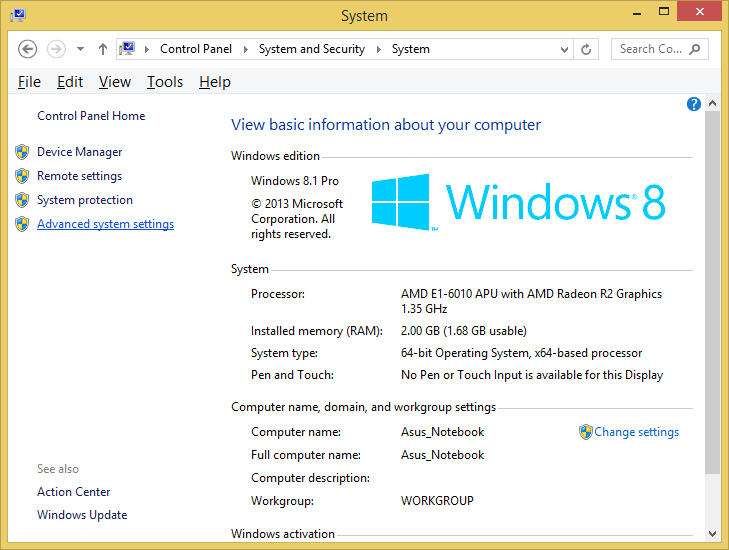
  3. Scroll through the list of apps and click "Control Panel" on the "Windows System". The Control Panel will appear on the screen.

    Scroll through the list of apps 1
    Scroll through the list of apps 1


    Scroll through the list of apps 2
    Scroll through the list of apps 2


    click "Control Panel" on the "Windows System"
    click "Control Panel" on the "Windows System"


    Control Panel opened
    Control Panel opened

    • Under "View by:",  click "Category"

      Under the "View by:",  click "Category"

    • then select the “System and Security” section.

      select the “System and Security” section

    • then select the “System” section on the right side.

      then select the “System” section on the right side.

  4. In the System window, click on Advanced System Settings on the left sidebar.

    click on Advanced System Settings on the left sidebar

  5. In the System Properties window (Advanced tab):

    click Advanced tab

    • Click the Environment Variables button.

      click the Environment Variables button.

    • Under the System Variables section, find Path variable.
      find and click Path variable in the middle

    • Click Edit button to modify the existing variable, or New button to create a new one, if the Path variable is not exist.
      Click the Edit button or click the New button.
    • In the Variable Name field, ensure you enter Path.
      Enter Variable name, enter Variable value, then click OK button

      In the Variable Value field, add the path of our Python installation directory (e.g., "C:\Program Files\Python\pythonXX").
    • Click OK button on the Edit System Variable window, to apply the changes.
  6. Click OK button again, click OK button again in System Properties window, and restart the computer to ensure the changes take effect.

    Click OK button on the Environment Variables window


    Click OK button again in System Properties window


    Click Start button > click Power Options button
    on the right top corner > click Restart

Notes

  • In the step 1 to open CommandPrompt, click How To Launch Command Prompt
  • After step 6 from above, then you can check to the "Set The Python Path Variable Via The Command Line" in the step 4 below. After finish, you can go to the next lesson.

Set The Python Path Variable Via The Command Line


WARNING use the step "Set Up The Python Path variable In Microsoft Windows 8" from above, if you have Microsoft Windows Environment Variables Path more than 1024 characters!

If you would prefer to set the Python Path Variable via the command line, and your Microsoft Windows Environment Variables Path is less than 1024 characters, follow this below step  :
  1. Open Command Prompt (make sure you "Run as administrator" with right click mouse, so you're able to add a system environment variable).

    Open the "Start menu" and click "All apps" down arrow button
     in the bottom-left corner.


    Find and hover the Command Prompt


    right click mouse on Command Prompt, then click "Run as administrator"

  2. Set the value of the environment variable to your Python installation path as follows:
    setx /m PATH "C:\Program Files\Python\pythonXX"

    type setx /m PATH "C:\Program Files\Python\pythonXX"

  3. Close and start Command Prompt window again to reload the environment variables and restart the computer to ensure the changes take effect.

    Close the Command Prompt window


    Click Start button > click Power Options button
    on the right top corner > click Restart

  4. After restart the Microsoft Windows. Use the step 1 again to open Command Prompt window. Then use the following command to check the path of your Python installation been added correctly.
    echo %PATH%

    type echo %PATH%

Notes: 
  • Be aware if you have Microsoft Windows Environment Variables Path over than 1024 characters when assigning contents to a variable using setx, it can result in loss of data previously held by the target variable.
  • If the Path variable or Expandable Environment-Variable Strings %PATH% is exist and not empty then you can add semicolon ( ; ) and then put the directory where the Python executable is installed in our system.
  • Be aware If You running the command with an existing variable without double quotes (" "), Expandable Environment-Variable Strings %PATH% and semicolon ( ; ) can be removes any variable references.
  • Only administrators account can change the Environment Variable.
  • Non standard Command Prompt or PowerShell may not running well.
  • XX is the python version.
  • You can place the installed Python inside the no matter folder that able to execute your Python script and compile your Python script, for example "C:\Program Files\Python\pythonXX".


Bibliography

Introduction to computation and programming using Python : with application to computational modeling and understanding data;John V. Guttag;The MIT Press
Python;Abhishek Singh
Python;David Beazley;O'Reilly
Python Crash Course;Eric Matthes;No Starch Press
Python Crash Course;Erick Myers
Python;Dr. Joseph Teguh Santoso, S.Kom., M.Kom
Python;Jubilee Enterprise;Elex Media Komputindo
Python;Budi Raharjo;Informatika
Python for Everybody;Dr. Charles Russell Severance, et. al.
Python for Scientists;John M. Stewart, et. al.
Quick Python;David Matuszek;Routledge
https://superuser.com/
https://support.microsoft.com/en-us
https://www.bleepingcomputer.com/

Kamis, 01 Mei 2025

Learn Microsoft Windows ( Road Map )


This road map is for person as Information Technology worker or Information Technology Businessman and The Successful Women Entrepreneur or Information Technology Enthusiast and Every person.

Introduction Series

Feasible Way To Run The Microsoft Windows Applications

Working With Applications And Files


Notes:

Learn these above lessons according to your needs, your requirements, or your tasks.


operating system, computer, computer lesson, microsoft windows os

Bibliography

  • Ebook Microsoft Windows Series, Microsoft Press
  • Ebook Windows Series, Pearson
  • Ebook Microsoft Windows Series, Packt Publisher.
  • https://www.udemy.com/

Senin, 10 Maret 2025

How To Check Version Of Tkinter ( Python )

  1. To check the Tkinter in the python, open Command Prompt.
  2. type python -m tkinter
  3. press Enter on keyboard.
type python -m tkinter

after press Enter on keyboard

Notes

  • Tkinter is included in Python 3 core installer on Microsoft Windows.
  • If Tkinter is installed and working correctly, a small popup window will appear. The first line at the top of the window should state, This is Tcl/Tk version 8.6.

 < to learn about Open Command Prompt in step 1, click How To Launch Command Prompt

<< back to Study About Python


command line, terminal, python, bash shell, installation, install

Related Post