Search In This Website

Rabu, 16 Juli 2025

Belajar Mengetik Heading Di Microsoft Office Word

Praktikan langkah mengetik heading dan menambahkan heading di Microsoft Office Word:

  1. Membuka Microsoft Office Word.


  2. Pastikan View Anda adalah Print Layout View. Jika belum, untuk mengubah tampilan, temukan tombol View pada Ribbon Tab Word dan klik tombol View itu. Kemudian, temukan pada bagian Ribbon Group Label Document Views di kiri, klik Print Layout button.


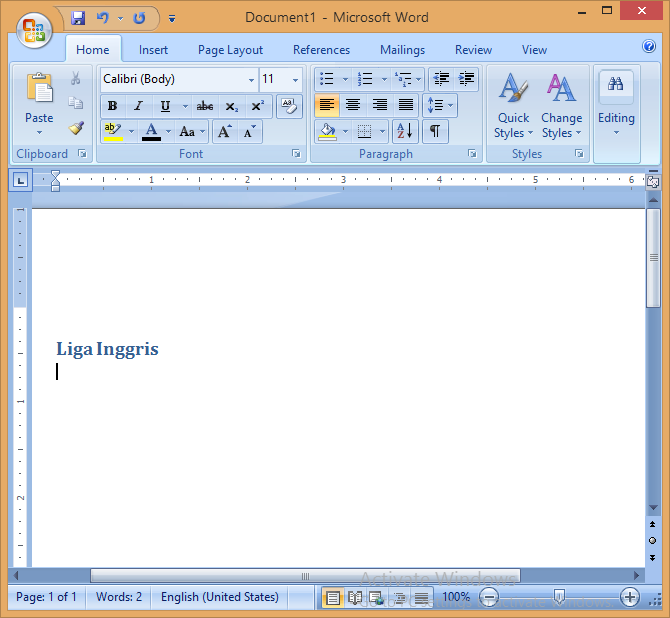
  3. Ketik "Liga Inggris" tanpa tanda kutip ganda.


  4. Pilih dan menyoroti teks tersebut. Tekan dan tahan tombol Shift pada keyboard dan gunakan tombol Panah Kanan pada keyboard untuk memperpanjang blok hingga semua teks diseleksi.


  5. Lalu klik Ribbon Tab Home > Quick Styles ( mungkin Anda tidak melihat ini jika layar Anda cukup luas ) > Heading 1 pada Ribbon Group Styles untuk mengganti format ke Heading 1.


  6. Tekan Panah Kanan, lalu tekan Enter pada keyboard.


  7. Ketik "Liverpool" tanpa tanda kutip ganda.


  8. Lalu ketik daftar lain nama liga sepak bola di dunia di bawah ini :


    • Brighton diketik sebagai format Normal.
      Arsenal diketik sebagai format Normal.
      Aston Villa diketik sebagai format Normal.
      Chelsea diketik sebagai format Normal.
    • Liga Spanyol diketik sebagai format Heading 1.
      Barcelona diketik sebagai format Normal.
      Celta diketik sebagai format Normal.
      Espanyol diketik sebagai format Normal.
      Las Palmas diketik sebagai format Normal.
      Villarreal diketik sebagai format Normal.
    • Liga Italia diketik sebagai format Heading 1.
      Bologna diketik sebagai format Normal.
      Como diketik sebagai format Normal.
      Milan diketik sebagai format Normal.
      Empoli diketik sebagai format Normal.
      Udinese diketik sebagai format Normal.
    • Liga Jerman diketik sebagai format Heading 1.
      Augsburg diketik sebagai format Normal.
      Bremen diketik sebagai format Normal.
      Bochum diketik sebagai format Normal.
      Leipzig diketik sebagai format Normal.
      Dortmund diketik sebagai format Normal.
    • Liga Indonesia diketik sebagai format Heading 1.
      Arema diketik sebagai format Normal.
      Borneo Samarinda diketik sebagai format Normal.
      Persebaya diketik sebagai format Normal.
      Persib diketik sebagai format Normal.
      Semen Padang diketik sebagai format Normal.
  9. Simpan dengan nama file HeadingLigaBola.docx


  10. Dan hasil dari langkah di atas akan ditampilkan seperti di bawah ini:


Bibliography

https://www.cnnindonesia.com/
https://edu.gcfglobal.org/
https://internusa.com/
https://business.tutsplus.com/
https://support.microsoft.com/ ( manual ebook )

list, bullet list, bulletlist, unorderedlist, unordered list

Related Post

Microsoft Word GUI Parts With Picture

These are Microsoft Office Word GUI Parts:


  1. Window Title Bar Text or Program Title Bar Text or Application Title or Software Title ( the most ordinary consist of file name with and file path ).
  2. Title Bar.
  3. Minimize Button Of Parent Window.
  4. Maximize Button Of Parent Window / Restore Down Button Of Parent Window.
  5. Close Button Of Parent Window.
  6. Restore Down Menu Item or Restore Down Menu Command or Restore Down Menu Entry.
  7. Move Menu Item or Move Menu Command or Move Menu Menu Entry.
  8. Size Menu Item or Size Menu Command or Size Menu Entry.
  9. Minimize Menu Item or Minimize Menu Command or Minimize Menu Entry.
  10. Maximize Menu Item or Maximize Menu Command or Maximize Menu Entry.
  11. Close Menu Item or Close Menu Command or Close Menu Entry.
  12. Vertical Ruler.
  13. Insertion Point or Cursor.
  14. Pages Information;
  15. Words (Count) Information
  16. Page Layout View Button / Print Layout View Button; 
  17. Full Screen Reading;
  18. Online Layout View Button / Web Layout View Button;
  19. Outline View Button;
  20. Draft View Button;
  21. Previous Page / Previous Object
  22. Select Browse Object
  23. Next Page / Next Object


Bibliography

https://developer.mescius.com/
https://microsoft.com/ ( manual ebook )
https://www.chi.ac.uk/ ( university )
https://www.componentsource.com/
https://www.syncfusion.com/

Selasa, 15 Juli 2025

Netbeans IDE parts With Picture

The following list are Netbeans IDE parts list:
  1. Title Bar;
  2. Menu Bar;
  3. Quick Launch Bar And Toolbar;
  4. Reference Bar / Reference Tab;
  5. Status Bar;

  • The Reference Area / The Reference Windows ( used for browsing and navigation ):
    1. Projects Panel / Projects Window;
    2. Navigator Panel / Navigator Window;
  • Working Area / Main Area:
    1. Working Area > File Tab;
    2. Working Area > Source Button;
    3. Working Area > Assist Icon;
    4. Working Area > Advice Margin And Line Numbers;
    5. Working Area > Code Editor Area;
    6. Working Area > Location Margin;
< previous  Netbeans IDE parts

Bibliography

https://bunghatta.ac.id/ ( university )
https://docs.oracle.com/ ( manual ebook )
https://telkomuniversity.ac.id/ ( university )
https://www.helsinki.fi/ ( university )
https://www.auckland.ac.nz/ ( university )
https://netbeans.apache.org/tutorial/ ( manual ebook )

Exercise Java Swing Components List 1


1. Type this following java programming code on your java programming IDE:
// Import the Java Swing Components package
import javax.swing.JButton;
import javax.swing.JLabel;
import javax.swing.JTextField;
import javax.swing.JFrame;
import javax.swing.SwingConstants;
import javax.swing.JTextArea;
import java.awt.BorderLayout;
public class JavaSwingComponentList {
/**
* Create the GUI and show it
*
*/
private static void initComponents() {
// Variables declaration for Java Swing and Define Java Swing Component
javax.swing.JButton jButton1 = new javax.swing.JButton("jButton1");
javax.swing.JLabel jLabel1;
javax.swing.JLabel jLabel2;
javax.swing.JTextField jTextField1;
javax.swing.JTextArea jTextArea1;
jLabel1 = new javax.swing.JLabel("jLabel1");
jLabel2 = new javax.swing.JLabel("jLabel2");
jTextField1 = new javax.swing.JTextField("jTextField1");
jTextArea1 = new javax.swing.JTextArea("jTextArea1");
// Create the window
JFrame frame = new JFrame("Java Swing Components List");
frame.setDefaultCloseOperation(JFrame.EXIT_ON_CLOSE);
// add Component and configure the position
frame.getContentPane().add(jButton1, BorderLayout.NORTH);
frame.getContentPane().add(jLabel1, BorderLayout.WEST);
frame.getContentPane().add(jTextArea1, BorderLayout.CENTER);
frame.getContentPane().add(jLabel2, BorderLayout.EAST);
frame.getContentPane().add(jTextField1, BorderLayout.SOUTH);
// Display the window
frame.pack();
frame.setSize(300, 150);
frame.setVisible(true); }
 
public static void main(String[] args) {
//Schedule and job for the event-dispatching thread:
javax.swing.SwingUtilities.invokeLater(new Runnable() {
public void run() {
initComponents();
}
});
}
}
2. Save as  JavaSwingComponentList.java.
3. Compile and run Java source code from above.

Result


<< back to Study About Java 1

Most Ordinary Pseudo Code Syntax

Pseudocode

Most programs are developed using programming languages. These languages have specific 
syntax  that must be used so that the program will run properly. Pseudocode is not a programming language, it is a simple way of describing a set of instructions that does not have to use specific syntax.

Best Practices For Writing Pseudocode

Pseudocode can make the coding process smoother and more efficient. Here are some tips for writing effective pseudocode:
  • Define the problem clearly. Before writing pseudocode, thoroughly understand the problem. Outline the desired outcomes, inputs and necessary steps to reach the outcome.
  • Keep it simple. Use straightforward and concise language that accurately depicts the steps of the algorithm. Avoid using complex terms or jargon that might confuse others.
  • Use consistent language. To maintain clarity, use a consistent style throughout the pseudocode. This helps others better understand the thought process behind the approach.
  • Write in a logical order. Each step should follow a logical sequence. Translating pseudocode into a programming language is easier that way.
  • Review and refine. Upon completion, ensure the pseudocode is clear and logical. Look for areas that could use simplification or clarification.
Pseudocode doesn't have to be perfect. Its main purpose is to help conceptualize the algorithm and facilitate communication with others.

Most Common Pseudocode Notation

There is no strict set of standard notations for pseudocode, but some of the most widely recognised are:
  • Begin with START or BEGIN and end with END to define algorithm boundaries. Use indentation to show operation hierarchy, similar to actual programming.
  • INPUT – indicates a user will be inputting something.
  • COMPUTE – indicates that a compute process of something.
  • STORE or SET or ASSIGN – indicates a user store the the data from input or compute something.
  • OUTPUT or SHOW or DISPLAY – indicates that an output will appear on the screen.
  • WHILE – a loop ( iteration )  that has a condition at the beginning.
  • FOR – a counting loop ( iteration ).
  • REPEAT – UNTIL – a loop (iteration) that has a condition at the end.
  • IF – THEN – ELSE – a decision ( selection ) in which a choice is made.
  • CALL – Invokes a function.
  • RETURN – Sends back a value from a function. 

Function Pseudocode

FUNCTION <function-name> ( <argument or parameter name> )
<function body>
RETURN value
ENDFUNCTION

Logic If Pseudocode

IF <condition>
<body statement>
ELSEIF <condition> 
<body statement>
ELSE
<body statement>
ENDIF

Repetition While Pseudocode

WHILE <condition>
<body statement>
ENDWHILE

Example Bubble Sort Program In Pseudocode

//Bubble sort program using function
START
DECLARE void bubble_sort

PROCEDURE int main
/* Declare variable for number container, number of elements, and looping index number */
DECLARE long array1[100], n, c
SHOW "Enter number of elements NEW LINE"
READ number of elements, SET TO variable n
SHOW "Enter <number elements> of integers", READ from n
// Loop each number input
FOR c = 0 TO c < n
    READ number, SET to variable array1
ENDFOR

CALL bubble_sort(array1, n)
SHOW "Sorted list in ascending order:NEW LINE"

// Loop each number in variable array1
FOR c = 0 TO c < n
    SHOW each number FROM array1 in each line
ENDFOR

RETURN 0
ENDPROCEDURE

PROCEDURE void bubble_sort(array list, n)
// Declare variable c, d, t AS long
    DECLARE long c, d, t
    
    // Loop through array of unsorted element
    FOR c = 0 TO c < n -1
    FOR d = 0 TO d < n - c - 1
        IF list[d] > list[d+1]
            // swapping
            t = list[d];
            list[d] = list[d+1];
            list[d+1] = t;
        ENDIF
    ENDFOR
    ENDFOR
ENDPROCEDURE
END

Example Bubble Sort Program In C Programming Language

//Bubble sort program in C language using function
// Compile using TDM GCC in Microsoft Windows
#include <stdio.h>
void bubble_sort(long [], long);

int main()
{
  long array1[100], n, c;

  printf("Enter number of elements\n");
  scanf("%ld", &n);

  printf("Enter %ld integers\n", n);

  for (c = 0; c < n; c++) {
    scanf("%ld", &array1[c]);
  }

  bubble_sort(array1, n);

  printf("Sorted list in ascending order:\n");

  for (c = 0; c < n; c++) {
     printf("%ld\n", array1[c]);
  }

  getchar();
  system("pause");

  return 0;
}

void bubble_sort(long list[], long n)
{
  long c, d, t;

  for (c = 0 ; c < n - 1; c++) {
    for (d = 0 ; d < n - c - 1; d++) {
      if (list[d] > list[d+1]) {
        /* Swapping */
        t         = list[d];
        list[d]   = list[d+1];
        list[d+1] = t;
      }
    }
  }
}


Bibliography

https://www.bbc.co.uk/
https://www.calpoly.edu/ ( university )
https://www.codecademy.com/
https://www.niu.edu/ ( university )
https://www.techtarget.com/

Senin, 14 Juli 2025

How To Check Tomcat Version

Check (JSP / Java Server Pages) Apache Tomcat Server Version Using the Microsoft Windows Command Line 
  1. Open your Command Line or Terminal. If you want to learn how to open Command Line, click How To Launch Command Prompt In Windows 8.
  2. Type the command:
    D:
    to change drive to drive D: ( you can change to the other drive depend to your Apache Tomcat server installation drive address )


  3. Type the command:
    CHDIR D:\softRun\xampp-win32-1.7.4\tomcat\lib
    to change folder location to Apache Tomcat Server address.
  4. Type the command:
    java -cp catalina.jar org.apache.catalina.util.ServerInfo
    then press Enter on keyboard.
Its output contains the Apache Tomcat Server version number, build date, computer specification and JVM version and JVM Vendor.

Notes

  • If you do not have your JAVA_HOME directory included in your PATH environment variable, you need to include the path to your Java SDK path (for example C:\runtime\Java\jdk1.8.0_66\ directory) in the JAVA_HOME environment variable. To learn to setup JAVA_HOME environment variable click Set The JAVA_HOME variable. Then (<java-home>/bin directory) on PATH environment variable. Then you must setup JDK ( Java Development Kit ) in Set Up A Java Development Kit In Microsoft Windows 8 With Picture.
  • The Apache Tomcat in D:\softRun\xampp-win32-1.7.4\tomcat\lib is just example, you can use the other Apache Tomcat.

<< back to Study About Java 1

Google Chrome Right Click Menu

Webpage Background Mode

"Back" for back to the previous webpage on the browsing history.

"Forward" for go forward to the webpage on the browsing history. 

"Reload" for reload the webpage. 

"Save as" for save the webpage. 

"Print" for print the webpage.

"Search image with Google" for search the webpage screenshot on Google search engine.

"Translate to ..." for translate the webpage. 

Text Selection Mode

"Cut" for cut the text.

"Copy" for copy the text. 

"Paste" for paste the text.

"Select All" for select all the text.

"Search Google for ..." for search selected text on Google search engine. 

"Print" for print the selection text. 

"Spell Check" for check spelling of the selected text. 

"Writing Direction" for change writing direction of the selected text. 

Image Selection Mode

"Open image in new tab" for open the image in the new tab. 

"Save image as..." for save the image as. 

"Copy image" for copy the image. 

"Copy image address" for copy the image address URL. 

"Search image with Google" for search selected image on Google search engine. 

Hyperlink Selection Mode

"Open link in new tab" for open the link in the new tab. 

"Open link in new window" for open the link in the new window. 

"Save link as..." for save the link as. 

"Copy link address" for copy the link address.


Bibliography

https://chromewebstore.google.com/
https://support.google.com/ ( manual ebook )