Search In This Website

Menampilkan postingan yang diurutkan menurut tanggal untuk kueri microsoft office. Urutkan menurut relevansi Tampilkan semua postingan

Sabtu, 18 Juli 2026

Study About Google Docs Suite

About Google Docs

You can create, view and edit Google documents, Spreadsheet, Presentation as well as Microsoft Office Word®, Microsoft Office Excel®, Microsoft Office PowerPoint®  files, with the Google Docs Editor or Google Docs Suite.

Introduction To Google Docs Suite

Navigate To Google Docs GUI

Using Google Docs

Create Documents Using Google Docs
Format Documents Using Google Docs
Organize Documents Using Google Docs.
Share Documents Using Google Docs.

Using Google Sheet

Create Documents Using Google Docs

Using Google  Presentation

Create Documents Using Google Docs

Bibliography

https://www.coursera.org/
https://support.google.com/

Minggu, 12 Juli 2026

Technical Document List

These are technical documents list:

  • Business Plan.
  • Business Requirement Document.
  • Case Tools.
  • Documentation And Manual Document.
  • Quality Assurance And Quality Checker Document.
  • Deployment And Implementation Document.
  • Maintenance Document.
  • Product Requirements Document.
  • Mockup Document.
  • Marketing Requirements Document.
  • Software Requirements Document.
  • Technical Requirements Document.
  • System Requirements Specification.

Jumat, 23 Januari 2026

Most File That Need To Backup 1

Before you get a problem in working with your  computer then you move over to other computer, or you want to move your documents  to the new computer. You may check these file extension lists that need to backup:

Microsoft Office Word and Word Processor family: 

* docx ( Modern Microsoft Office )

* odt ( Modern FOSS Office )

* doc ( Classic Microsoft Office )

* rtf ( inter compatibility file format )

* wps ( WPS Office )

Microsoft Office Excel:

* xlsx ( Modern Microsoft Office Excel )

* xls ( Classic Microsoft Office Excel )

* csv ( inter compatibility file format )

* ods ( Modern FOSS Office )

Microsoft Office PowerPoint:

* pptx ( Modern Microsoft Office Presentation )

* ppt ( Classic Microsoft Office Presentation )

* odp ( Modern FOSS Office )

Microsoft Office Access:

* accdb ( Modern Microsoft Office Access )

* mdb  ( Classic Microsoft Office Access )

* mdw ( Modern Microsoft Office Access )

* mda ( Classic Microsoft Office Access )

Image / Photo format:

* jpg ( inter compatibility graphic) 

* bmp ( inter compatibility graphic format)

* Raw Camera Format ( for example: Canon cr2, cr3; Nikon nef,  Sony arw, Fuji raf )

* tiff ( inter compatibility raw graphic format )

Video format:

* avi ( Windows video format )

* mov ( Apple QuickTime video format ) 

* mp4 ( Digital video format )

Lightweight document format :

* md ( markdown )

* rst ( restructured text )

* adoc ( asciidoc )

* bbcode ( buletin board )

* wiki ( wikitext )

* txt ( text file )

Ebook format :

* pdf ( Adobe proprietary format )

* epub ( open collaborative publisher format)

* azw ( Amazon proprietary format )

* mobi ( Amazon Mobipocket ebook reader )

Archive And Business Files format :

* 7z ( Compressed archive file )

* ics ( Calendar of Event file format )

* rar ( Compressed archive file )

* vcf ( Digital Business contact file )

* zip ( Compressed archive file )


Bibliography:

https://www.adobe.com/
https://en.wikipedia.org/wiki/Main_Page
https://support.microsoft.com/
https://www.wps.com/

Selasa, 02 Desember 2025

Insert Horizontal Line In Microsoft Office Word

Preparation

< to learn start the Microsoft Office Word application, click Start Microsoft Office Word Application
< to learn to make a new document in Microsoft Office Word in Bahasa language, click Membuat Dokumen Microsoft Office Word 2007

Insert A Horizontal Line In Microsoft Office Word 2007

1. Typing a paragraph text.
2. Then select a paragraph text.
3. In Microsoft Office Word, on the Home tab, select the down arrow next to Borders button.
4. Choose Bottom Border.


Notes

  • untuk gambar yang lebih jelas, klik di gambar.
  • Sementara tidak terdapat gambar screenshot dikarenakan komputer untuk memproduksi tutorial sedang rusak, masih dalam usaha untuk memperbaiki.

Bibliography 
Ebook Microsoft Office; Microsoft Press
Ebook Microsoft Office; Elex Media Komputindo
Ebook Microsoft Office; Cengage publisher
https://www.tiktok.com/@seewhatiseeee

Kamis, 04 September 2025

Menseleksi Di Microsoft Office Word

Setelah membuka dokumen Microsoft Office Word, kita akan mempelajari cara menseleksi di Microsoft Office Word berikut ini.

Setelah membuka dokumen dalam Microsoft Office Word

Beberapa kombinasi tombol keyboard dapat mempercepat proses seleksi:

Melakukan Seleksi Layar Demi Layar Dalam Microsoft Office Word

Tekan Shift+Page Down untuk Menseleksi layar demi layar. Seleksi mulai posisi kursor hingga ke layar bawah.

Tempatkan kursor di awal dokumen


Setelah menekan Shift+Page Down

Tekan Shift+Page Up untuk Menseleksi layar demi layar. Seleksi mulai posisi kursor hingga ke layar atas.

Tempatkan kursor

Setelah menekan Shift+Page Up

Melakukan Seleksi Hingga Awal Baris Dalam Microsoft Office Word

Shift+Home: Akan menseleksi mulai posisi kursor hingga awal baris.
Tempatkan kursor

Setelah menekan Shift+Home

Melakukan Seleksi Hingga Akhir Baris Dalam Microsoft Office Word

Shift+End: Akan menseleksi mulai posisi kursor hingga akhir baris.

Tempatkan kursor

Setelah menekan Shift+End

Melakukan Seleksi Kata Demi Kata Dalam Microsoft Office Word

Tekan Shift+Ctrl+Tanda Panah Kiri Akan menseleksi seluruh bagian yang dilewati kursor, kata demi kata.

Tempatkan kursor


Setelah menekan Shift+Ctrl+Tanda Panah Kiri

Setelah menekan Shift+Ctrl+Tanda Panah Kiri lagi

Tekan Shift+Ctrl+Tanda Panah Kanan Akan menseleksi seluruh bagian yang dilewati kursor, kata demi kata.

Tempatkan kursor

Setelah Menekan Shift+Ctrl+Tanda Panah Kanan

Melakukan Seleksi Paragraf Demi Paragraf Dalam Microsoft Office Word

Tekan Shift+Ctrl+Tanda Panah Atas akan menseleksi seluruh bagian yang dilewati kursor, paragraf demi paragraf.
Tempatkan kursor

Setelah Menekan Shift+Ctrl+Tanda Panah Atas

Tekan Shift+Ctrl+Tanda Panah Bawah Akan menseleksi seluruh bagian yang dilewati kursor, paragraf demi paragraf.
Tempatkan kursor

Setelah menekan tombol Shift+Ctrl+Tanda Panah Bawah

Melakukan Seleksi Karakter Demi Karakter Dalam Microsoft Office Word

Tekan Shift+Tanda Panah Kanan Akan menseleksi seluruh bagian yang dilewati kursor, karakter demi karakter.
Tempatkan kursor

Setelah menekan Shift+Tanda Panah Kanan

Setelah menekan Shift+Tanda Panah Kanan ke dua kali

Setelah menekan Shift+Tanda Panah Kanan ke tiga kali

Setelah menekan Shift+Tanda Panah Kanan ke empat kali

Tekan Shift+Tanda Panah Kiri Akan menseleksi seluruh bagian yang dilewati kursor, karakter demi karakter.
Tempatkan kursor

Setelah menekan Shift+Tanda Panah Kiri

Setelah menekan Shift+Tanda Panah Kiri ke dua kali

Setelah menekan Shift+Tanda Panah Kiri ke tiga kali

Setelah menekan Shift+Tanda Panah Kiri ke empat kali

Melakukan Seleksi Baris Demi Baris Dalam Microsoft Office Word


Tekan Shift+Tanda Panah Atas Akan menseleksi seluruh bagian yang dilewati kursor, baris demi baris.
Tempatkan kursor

Setelah menekan Shift+Tanda Panah Atas

Tekan Shift+Tanda Panah Bawah Akan menseleksi seluruh bagian yang dilewati kursor, baris demi baris.
Tempatkan kursor

Setelah menekan Shift+Tanda Panah Bawah


Jumat, 29 Agustus 2025

Certain Content In The Database Has Been Disabled In Microsoft Access

  1. After you open the Microsoft Office Access Database.
  2. Then you see the Message Bar consist of "Certain content in the database has been disabled" is displayed on Microsoft Office Access.


  3. On the Message Bar, click Options.

  4. Choose Enable this content.
  5. Then click OK button.


Bibliography

https://www.fmsinc.com/
https://support.microsoft.com/

Related Post

Selasa, 26 Agustus 2025

Microsoft Office Excel Lesson Topics List

Excel Basics:

Understanding The User Interface

Navigating The Workbooks

to Understanding The User Interface, click :


Cell and Data Management:

Entering different types of data (text, numbers, dates).

Inserting And Deleting cells, rows, and columns.

Using Cut, Copy, and Paste functions.

Using the Fill Handle.

Formatting:

Adjusting column width and row height.

Applying font styles, borders, and cell shading.

Using Number Formats (currency, percentage, date).

Saving and Sharing:

Saving Workbooks

Printing Workbooks

Sharing Workbooks with others.

Introduction to Formulas - Formulas and Functions:

Understanding the formula syntax (starting with =).

Performing basic calculations (addition, subtraction, multiplication, division).

to learn Understanding the formula syntax (starting with =), click:

Cell References - Formulas and Functions:

Understanding Relative vs. Absolute cell references ($).

Using Mixed cell references.

Essential Functions - Formulas and Functions:

SUM(), AVERAGE(), COUNT(), COUNTA(), MAX(), MIN().

IF() statements for logical tests.

VLOOKUP() and HLOOKUP() for finding data.

to learn SUM(), AVERAGE(), COUNT(), COUNTA(), MAX(), MIN(), click Fungsi MIN Pada Excel

More Advanced Functions - Formulas and Functions:

INDEX() and MATCH() as a powerful alternative to VLOOKUP.

TEXT(), CONCATENATE(), and other text functions.

Date and Time functions.

Sorting and Filtering - Data Management and Analysis:

Sorting data by one or multiple columns.

Applying filters to show only specific data.

Creating Tables

Charts and Graphs:

Creating various chart types (bar, line, pie).

Customizing chart elements like titles, labels, and axes.

Conditional Formatting: Highlighting cells based on specific rules (e.g., values greater than 100).

PivotTables: Creating a PivotTable to summarize and analyze large datasets.

Advanced Topics

Data Validation: Setting rules for data entry in a cell to prevent errors.

What-If Analysis: Using tools like Goal Seek and Data Tables.

Macros and VBA:

Introduction to the Visual Basic for Applications (VBA) editor.


<< back to Study About Microsoft Office 1


Go to study Microsoft Office Word, click Microsoft Office Word Lesson Topics List >>

Travel Through Microsoft Word Objects

Microsoft Office Word Objects Structure

Here is a breakdown of the key objects in Microsoft Office Word:
  • Application Object
    • Documents Collection and Document Object
    • Sections Collection & Section Object 
    • Paragraphs Collection & Paragraph Object
    • Tables Collection & Table Object
      • Rows Collection, Row Object, Columns Collection, Column Object, & Cell Object
    • Range Object
    • Selection Object
    • Find Object & Replacement Object
    • Shapes, InlineShapes, and TextBoxes


Bibliography

https://learn.microsoft.com/ ( manual ebook )

Senin, 18 Agustus 2025

Cara Memindahkan Insertion Point Di Microsoft Office Word

Cara Memindahkan Insertion Point Di Microsoft Office Word

Untuk Melakukan Hal Tekan
Pindahkan Insertion Point satu karakter/character ke kiri. Tombol Panah Kiri
Pindahkan Insertion Point satu karakter/character ke kanan. Tombol Panah Kanan
Pindahkan Insertion Point satu baris/line ke bawah. Tombol Panah Bawah
Pindahkan Insertion Point satu baris/line ke atas. Tombol Panah Atas
Pindahkan Insertion Point ke akhir baris/line saat ini. Tombol End
Pindahkan Insertion Point ke awal baris/line saat ini. Tombol Home
Pindahkan Insertion Point ke paragraf/paragraph berikutnya
dan menambahkan paragraf/paragraf/paragraph berikutnya.
Enter
Menambahkan spasi/space setelah suatu karakter/character
atau antara teks.
Spacebar
Menambahkan tabulasi/tab setelah suatu karakter/character
atau antara teks.
Tab
Pindahkan Insertion Point dengan menggulir/scroll
tampilan dokumen ke atas satu layar/screen.
Page Up / PgUp
Pindahkan Insertion Point dengan menggulir/scroll
tampilan dokumen ke bawah satu layar/screen.
Page Down / PgDn
Pindahkan Insertion Point satu kata/word ke kiri. Ctrl + Left Arrow
Pindahkan Insertion Point satu kata/word ke kanan. Ctrl + Right Arrow
Pindahkan Insertion Point satu paragraf/paragraph ke atas. Ctrl + Up Arrow
Pindahkan Insertion Point satu paragraf/paragraph ke bawah. Ctrl + Down Arrow
Pindahkan Insertion Point ke bagian atas halaman/page berikutnya.* Ctrl + Page Down
Pindahkan Insertion Point ke bagian atas halaman/page sebelumnya.* Ctrl + Page Up
Pindahkan kursor ke akhir dokumen. Ctrl + End
Pindahkan kursor ke awal dokumen. Ctrl + Home
Pindahkan kursor ke lokasi revisi sebelumnya. Shift + F5
Menelusuri lokasi empat perubahan sebelumnya yang
dibuat pada dokumen.
Ctrl + Alt + Z
Pindahkan kursor ke bagian atas layar. Ctrl + Alt + Page Up
Pindahkan kursor ke bagian bawah layar. Ctrl + Alt + Page Down
Tampilkan kotak dialog Go To/Go To dialog box untuk menavigasi
ke halaman tertentu, bookmark, footnote, table, comment, graphics,
atau lokasi lain.
Ctrl + G

Notes

  • *Jika tidak mengubah Go to what object atau Browse Object.

Bibliography

https://edu.gcfglobal.org/
https://support.microsoft.com/
https://www.lenovo.com/
https://www.etsy.com/
https://www.teachucomp.com/

Kamis, 07 Agustus 2025

Kamis, 31 Juli 2025

Fungsi MIN Pada Excel

Fungsi MIN Pada Microsoft Excel

Fungsi MIN digunakan untuk menampilkan nilai atau angka minimum (terkecil) yang terdapat dalam suatu sel/range atau beberapa sel/range data. Bentuk penulisan fungsi adalah sebagai berikut,
=MIN(number1;number2; ...)

Penjelasan argumen fungsi MIN.

Keterangan
number
dapat berupa angka/bilangan, sel atau range yang berisi angka atau nilai logika. Excel mengizinkan Anda untuk mengisi argumen maksimal sebanyak 255.

Fungsi MINA Pada Microsoft Excel

Fungsi MINA digunakan untuk menampilkan nilai terkecil dari sekelompok data tanpa mengabaikan jenis data teks atau logika. Bentuk penulisan fungsi adalah sebagai berikut,
=MINA(value1;value2; ...)
Keterangan
value
dapat berupa angka/bilangan, sel atau range yang berisi angka, teks atau nilai logika. Jika nilai logika diisi dengan TRUE, Excel memberi nilai 1 dan jika nilai logika diisi dengan FALSE, Excel akan memberi nilai 0. Anda diizinkan untuk mengisi sampai dengan 255 argumen.

Studi kasus berikut disajikan data yang diperlihatkan dalam gambar.dan table berikut ini:

ABCDEFGHIJKL
3  DATA MIN DATA  MIN DATA  MIN
4  0.10 =MIN(B4:B16)  15.00 =MIN(F4:F16)  15.00 =MIN(J4:J16)
5  0.85  27.00  27.00 
6  0.41 MINA 15.50 MINA 15.50 MINA
7  0.47 =MINA(B4:B16) 10.00 =MINA(F4:F16) 10.00 =MINA(J4:J16)
8  0.80  8.00   8.00  
9  0.70  7.00   7.00  
10 0.78  6.00   6.00  
11 0.70  5.00   5.00  
12 0.99  10.99  10.99 
13 0.07  12.00  12.00 
14 KOSONG  TRUE   FALSE 
15 0.75  15.00  15.00 
16 0.50  25.50  25.50 

Soal:

  • Input data di kolom B, dari B3 sampai dengan B16, seperti dalam tabel di atas.
  • Tulislah fungsi MIN di kotak cell D4, H4 dan L4.
  • Tulislah fungsi MINA di kotak cell D7, H7 dan L7


Related Post

Rabu, 30 Juli 2025

Ribbon UI XML Namespace

You need to save the Custom Ribbon UI file in your office document (.xlsm, .docm, .pptm)

Use "Custom UI Editor For Microsoft Office", "Office RibbonX Editor" to make editing more easier.

You can use another XML (eXtensible Markup Language) editor, for example "Microsoft XML Notepad", "Oxygen XML Editor", "Alova XML Spy", "Liquid XML Studio" or other text editor and IDE for your option with XML plugin.

Microsoft Office 2007 Custom Ribbon UI Namespace

<customUI xmlns="http://schemas.microsoft.com/office/2006/01/customui">

file: customUI.xml
folder: \customUI

Microsoft Office 2010 Custom Ribbon UI Namespace

<customUI xmlns="http://schemas.microsoft.com/office/2009/07/customui">
file: customUI14.xml
folder: \customUI

Microsoft Office 2010 Custom Ribbon UI DTD Schema

<Relationship Id="R43c63e08ca974dfc" Type="http://schemas.microsoft.com/office/2006/relationships/ui/extensibility" Target="customUI/customUI.xml"/>
file: .rels
folder: _rels

Bibliography

https://bettersolutions.com/index.htm
https://learn.microsoft.com/ ( manual ebook )
https://officeoneonline.com/index.html
https://vba.co.id/
https://www.brightcarbon.com/
http://www.pptalchemy.co.uk/

CSV Schema File

  • A CSV (Comma Separated Value) schema file defines the structure of your data.
  • Common file name for CSV Schema is schema.ini
  • CSV Schema File is commonly using in ODBC Data Source Administrator

schema.ini example:

[CartoonCharacter.csv]
ColNameHeader=True
Format=CSVDelimited(;)
MaxScanRow=17
CharacterSet=OEM
DecimalSymbol=.
Col1="No" Float Width 3
Col2="Cartoon Name" Text Width 21
Col3="Description" Text Width 20
Save file as schema.ini

*.csv file example:

No;Cartoon Name;Description
1.;Bluey;Cartoon Character 1
2.;Peppa Pig;Cartoon Character 2
3.;Gudetama;Cartoon Character 3
4.;Mofusand;Cartoon Character 4
5.;Elsa;Cartoon Character 5
6.;Anna;Cartoon Character 6
7.;Spongebob Squarepants;Cartoon Character 7
8.;Finn;Cartoon Character 8
9.;Jake;Cartoon Character 9
10.;Minions;Cartoon Character 10
11.;Lightning McQueen;Cartoon Character 11
12.;Paw Patrol Pups;Cartoon Character 12
13.;Ladybug;Cartoon Character 13
14.;Tom;Cartoon Character 14
15.;Jerry;Cartoon Character 15
16.;CocoMelon;Cartoon Character 16
Save file as CartoonCharacter.csv

Bibliography

Rabu, 16 Juli 2025

Belajar Mengetik Heading Di Microsoft Office Word

Praktikan langkah mengetik heading dan menambahkan heading di Microsoft Office Word:

  1. Membuka Microsoft Office Word.


  2. Pastikan View Anda adalah Print Layout View. Jika belum, untuk mengubah tampilan, temukan tombol View pada Ribbon Tab Word dan klik tombol View itu. Kemudian, temukan pada bagian Ribbon Group Label Document Views di kiri, klik Print Layout button.


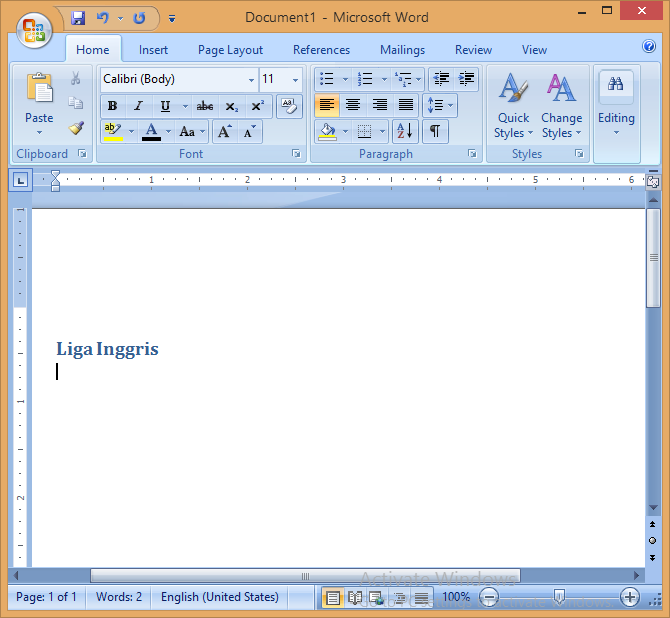
  3. Ketik "Liga Inggris" tanpa tanda kutip ganda.


  4. Pilih dan menyoroti teks tersebut. Tekan dan tahan tombol Shift pada keyboard dan gunakan tombol Panah Kanan pada keyboard untuk memperpanjang blok hingga semua teks diseleksi.


  5. Lalu klik Ribbon Tab Home > Quick Styles ( mungkin Anda tidak melihat ini jika layar Anda cukup luas ) > Heading 1 pada Ribbon Group Styles untuk mengganti format ke Heading 1.


  6. Tekan Panah Kanan, lalu tekan Enter pada keyboard.


  7. Ketik "Liverpool" tanpa tanda kutip ganda.


  8. Lalu ketik daftar lain nama liga sepak bola di dunia di bawah ini :


    • Brighton diketik sebagai format Normal.
      Arsenal diketik sebagai format Normal.
      Aston Villa diketik sebagai format Normal.
      Chelsea diketik sebagai format Normal.
    • Liga Spanyol diketik sebagai format Heading 1.
      Barcelona diketik sebagai format Normal.
      Celta diketik sebagai format Normal.
      Espanyol diketik sebagai format Normal.
      Las Palmas diketik sebagai format Normal.
      Villarreal diketik sebagai format Normal.
    • Liga Italia diketik sebagai format Heading 1.
      Bologna diketik sebagai format Normal.
      Como diketik sebagai format Normal.
      Milan diketik sebagai format Normal.
      Empoli diketik sebagai format Normal.
      Udinese diketik sebagai format Normal.
    • Liga Jerman diketik sebagai format Heading 1.
      Augsburg diketik sebagai format Normal.
      Bremen diketik sebagai format Normal.
      Bochum diketik sebagai format Normal.
      Leipzig diketik sebagai format Normal.
      Dortmund diketik sebagai format Normal.
    • Liga Indonesia diketik sebagai format Heading 1.
      Arema diketik sebagai format Normal.
      Borneo Samarinda diketik sebagai format Normal.
      Persebaya diketik sebagai format Normal.
      Persib diketik sebagai format Normal.
      Semen Padang diketik sebagai format Normal.
  9. Simpan dengan nama file HeadingLigaBola.docx


  10. Dan hasil dari langkah di atas akan ditampilkan seperti di bawah ini:


Bibliography

https://www.cnnindonesia.com/
https://edu.gcfglobal.org/
https://internusa.com/
https://business.tutsplus.com/
https://support.microsoft.com/ ( manual ebook )

list, bullet list, bulletlist, unorderedlist, unordered list

Related Post

Microsoft Word GUI Parts With Picture

These are Microsoft Office Word GUI Parts:


  1. Window Title Bar Text or Program Title Bar Text or Application Title or Software Title ( the most ordinary consist of file name with and file path ).
  2. Title Bar.
  3. Minimize Button Of Parent Window.
  4. Maximize Button Of Parent Window / Restore Down Button Of Parent Window.
  5. Close Button Of Parent Window.
  6. Restore Down Menu Item or Restore Down Menu Command or Restore Down Menu Entry.
  7. Move Menu Item or Move Menu Command or Move Menu Menu Entry.
  8. Size Menu Item or Size Menu Command or Size Menu Entry.
  9. Minimize Menu Item or Minimize Menu Command or Minimize Menu Entry.
  10. Maximize Menu Item or Maximize Menu Command or Maximize Menu Entry.
  11. Close Menu Item or Close Menu Command or Close Menu Entry.
  12. Vertical Ruler.
  13. Insertion Point or Cursor.
  14. Pages Information;
  15. Words (Count) Information
  16. Page Layout View Button / Print Layout View Button; 
  17. Full Screen Reading;
  18. Online Layout View Button / Web Layout View Button;
  19. Outline View Button;
  20. Draft View Button;
  21. Previous Page / Previous Object
  22. Select Browse Object
  23. Next Page / Next Object


Bibliography

https://developer.mescius.com/
https://microsoft.com/ ( manual ebook )
https://www.chi.ac.uk/ ( university )
https://www.componentsource.com/
https://www.syncfusion.com/

Selasa, 01 Juli 2025

How To Launch Command Prompt In Windows 8

1. Click the Start button to open the "Start menu"

2. and click "All apps" down arrow button in the bottom-left corner.


3. Scroll through the list of apps and Right click mouse to the "Command Prompt" on the "Windows System" then choose "Run as administrator". The Command Prompt will appear on the screen with administrative privileges.


Notes


go to How To Launch Command Prompt >

Related Post